
SAP PP Assign Plant to Company Code
Before you go ahead and make the assignment, you should ensure that both the plant and company code must already be defined.
When you “assign a Plant to a Company Code”, you are telling the system: “This plant operates within the legal entity represented by that Company Code”. Without this assignment, integration between logistics/production and finance can face issues. A company code can have more than one plant, so it allows to assign more than one plant to a company code in SAP.
Here’s a step-by-step to assign a plant to company code –
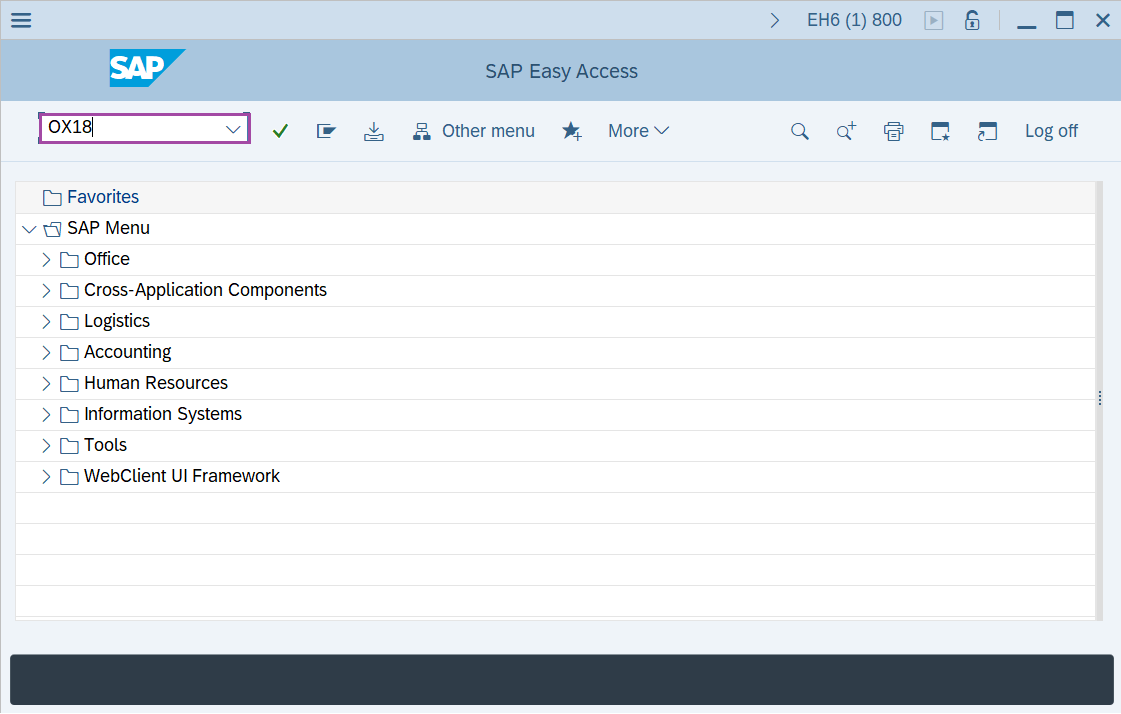
Step-1: - Enter the transaction code OX18 in SAP command field and press Enter to continue.
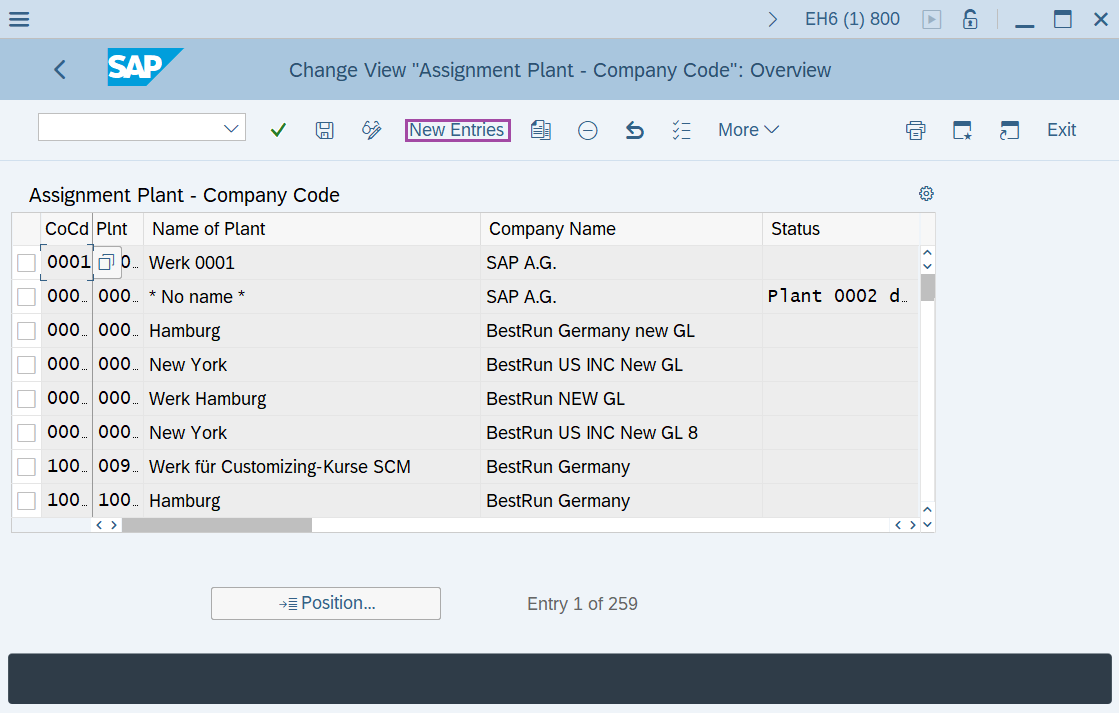
Step-2: - Change View “Assignment Plant – Company Code”: Overview window appears. Click on New Entries.
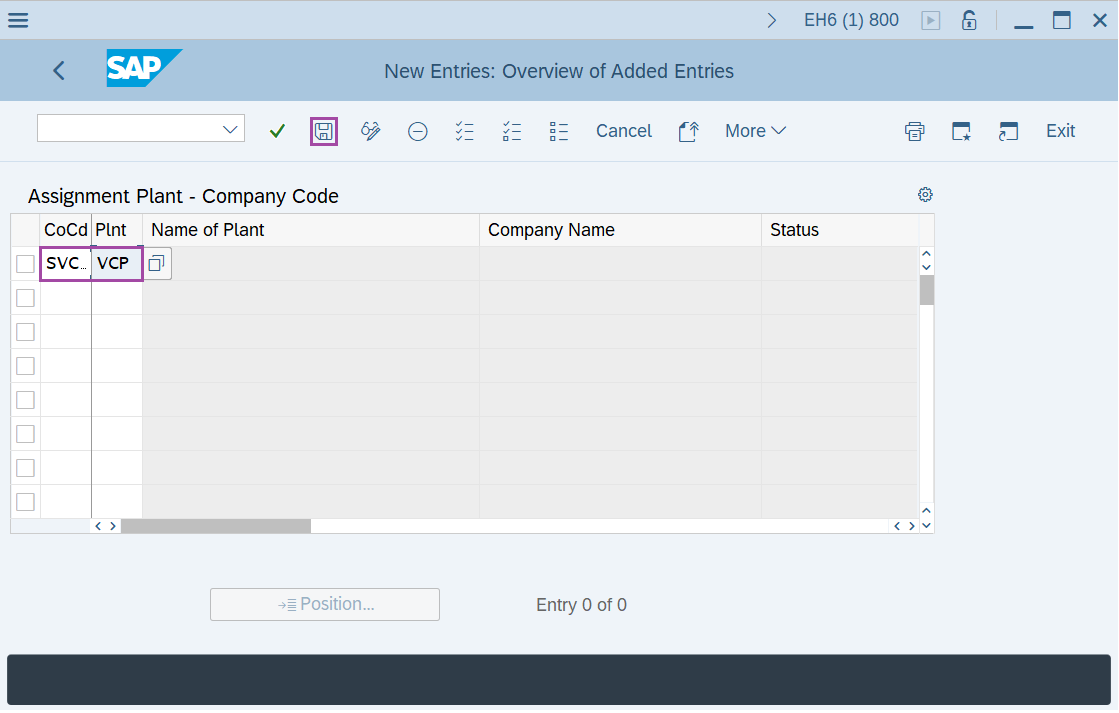
Step-3: - New Entries: Overview of Added Entries window appears, enter the Company code and Plant code then press Enter to save the data.
Step-4: - Status bar displays the below message once the default values saved successfully.
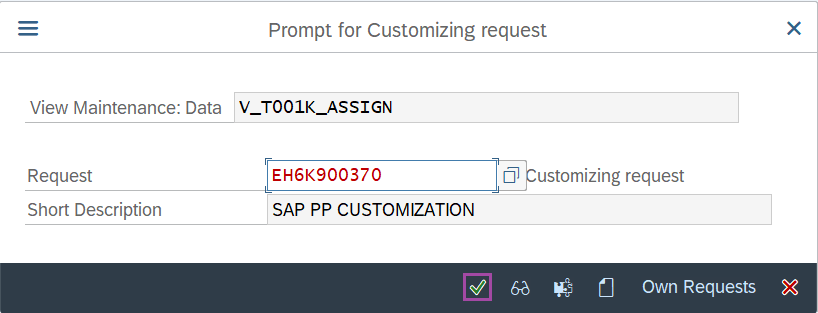
Thus, the Plant is assigned to Company code.
Technical details –
- Transaction code: OX18
- Menu path: SPRO → IMG Reference → Enterprise Structure → Assignment > Logistics - General → Assign Plant to Company Code.