
SAP PP Define Company Code
A Company Code is the smallest legal organizational unit in SAP that represents an independent accounting entity. In simple words, it is like a legally registered company or legal unit inside the SAP system where financial transactions are recorded. Each company code has its own balance sheet, profit and loss statement, and legal reporting structure.
Important points –
- It is required to define at least one company code in an SAP system for implementing SAP FI module.
- It is implemented in SAP system according to tax law and commercial law.
- It is used for external accounting system to general statements.
Even though defining a company code is done mainly in FI (Financial Accounting), it is extremely important for SAP PP because all manufacturing activities eventually flow into accounting. When you define a company code, you are establishing the foundation for plants, production processes, costing, and material movements linked to that legal entity.
Prerequisites -
- Before defining a company code, you must know whether the business is a single entity or has multiple legal companies. Each legally registered entity usually becomes one company code in SAP.
- To create a company code, you need the organization’s basic details such as: Official company name, Country, City, Currency and Language.
- Since accounting depends on fiscal year settings (for example April–March or January–December), the fiscal year variant must be agreed upon before defining the company code.
Here’s a step-by-step to Define Company Code –
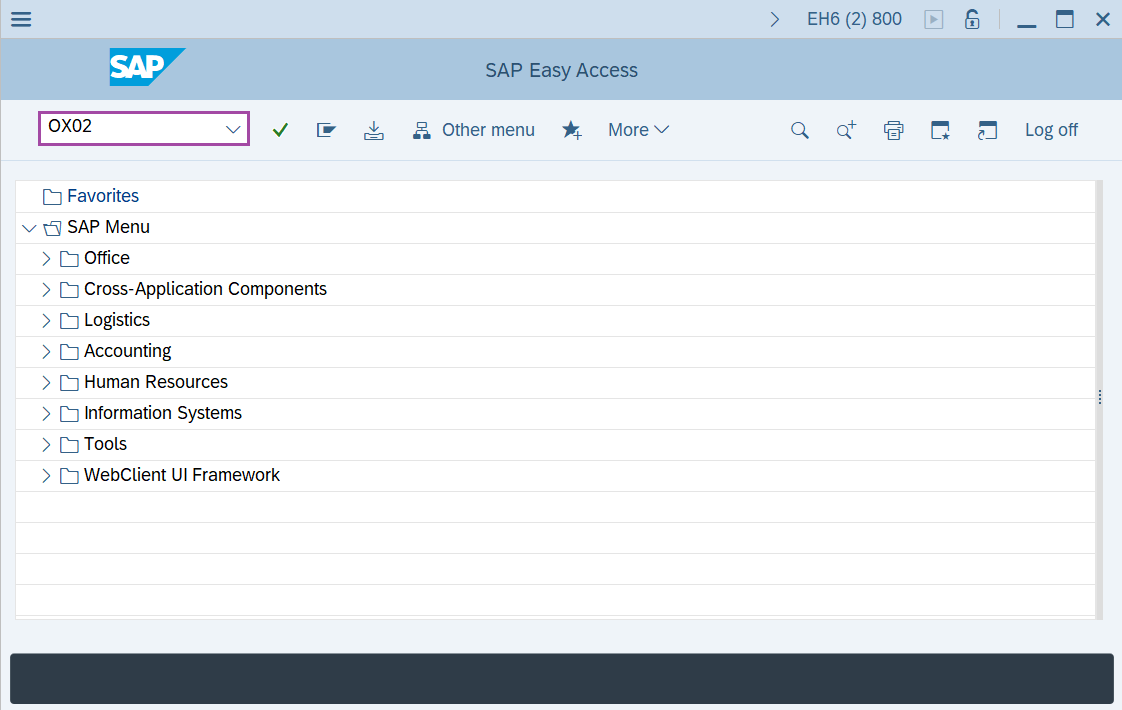
Step-1: - Enter the transaction code OX02 in SAP command field and press Enter to continue.
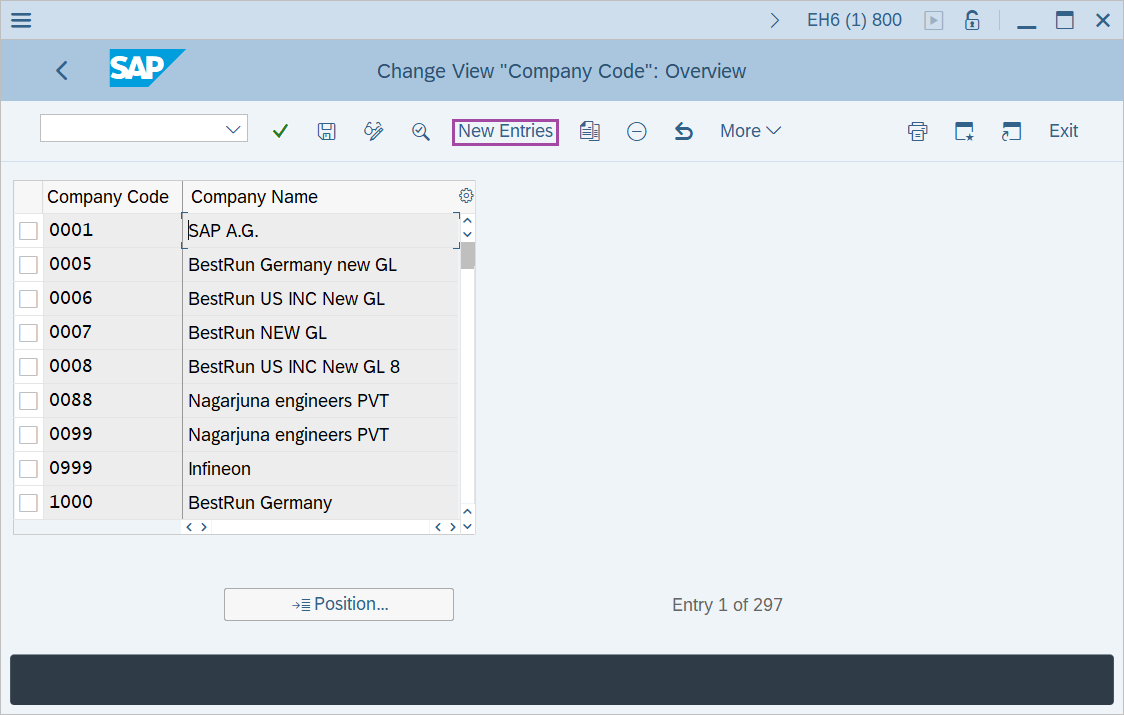
Step-2: - Change View “Company Code”: Overview window appears. Click on the New Entries.
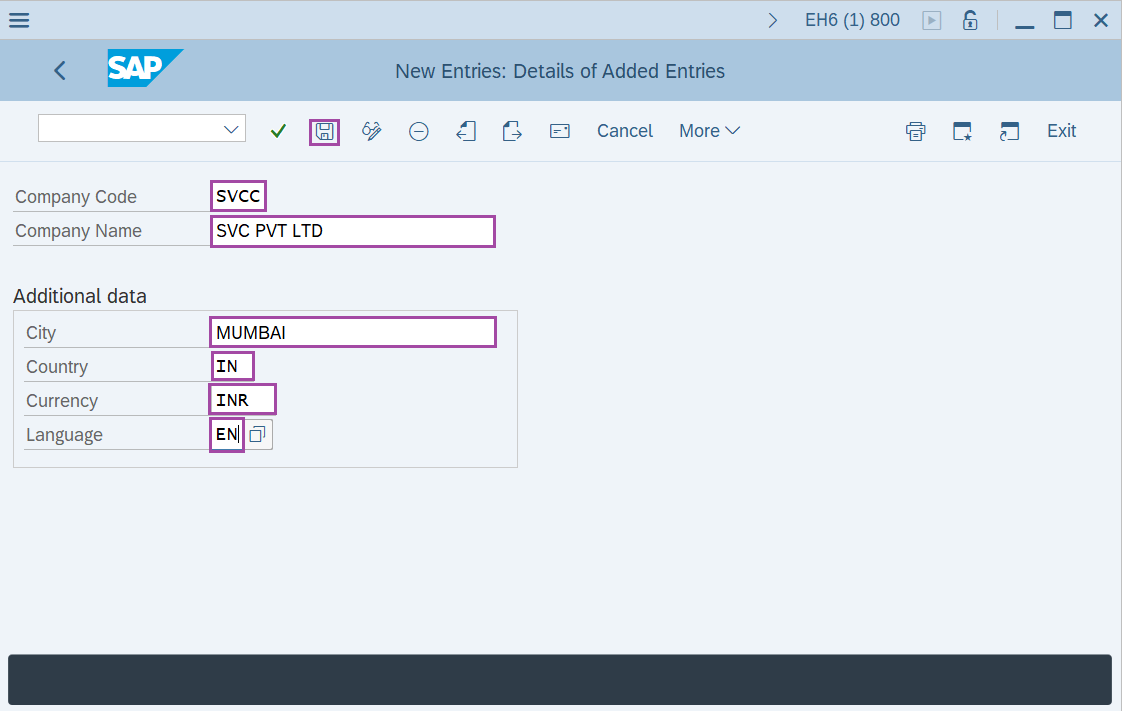
Step-3: - New Entries: Details of Added Entries window appears, enter the details in the fields –
- Enter a Company code for the company.
- Enter the company name for identifying the company code key.
- Enter the details City, Country, local Currency of company, Language in Additional Data.After entering the details click on the Save button.
Step-4: - Another window appears as Edit address, update the required fields.
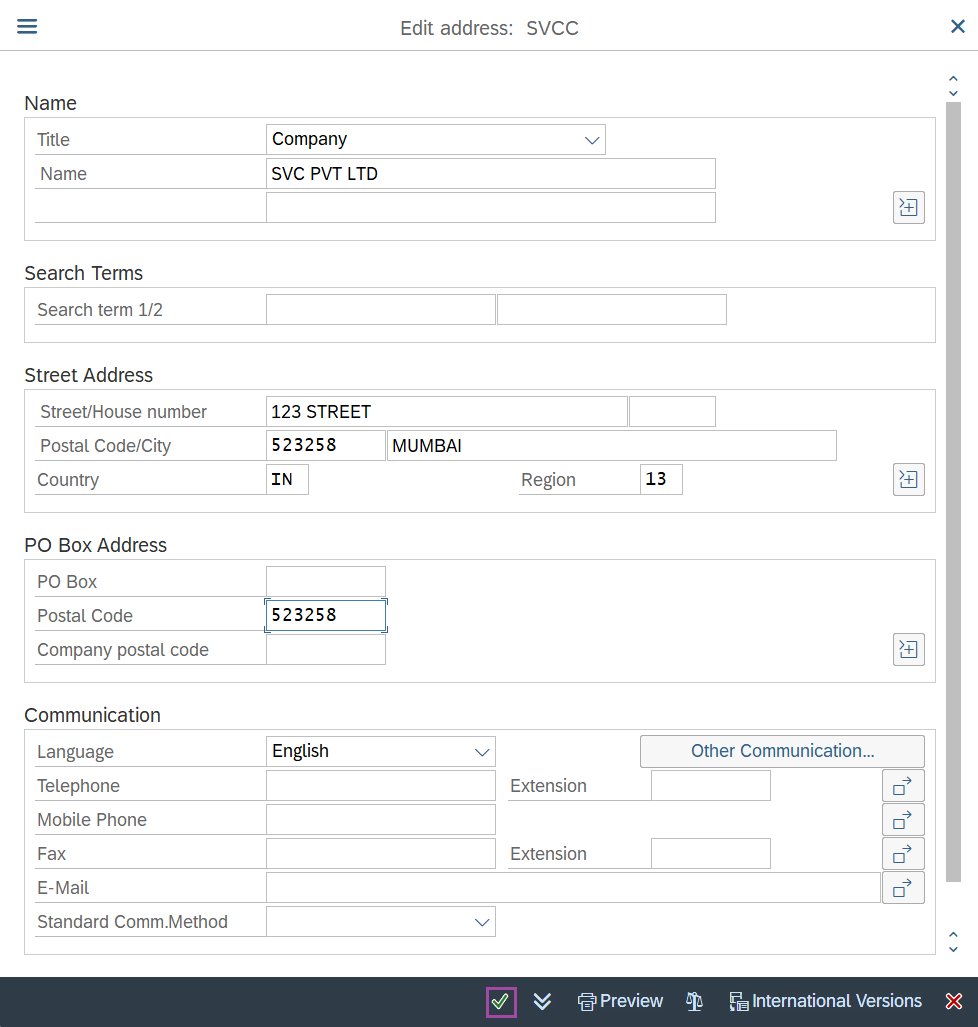
Once the data is entered, click on Save to save the details.
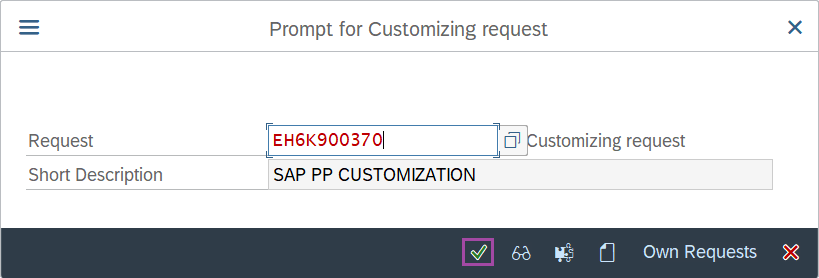
Step-5: - Select the “customizing request” and click on right mark to continue.
Step-6:- Status bar displays the below message once the default values saved successfully.
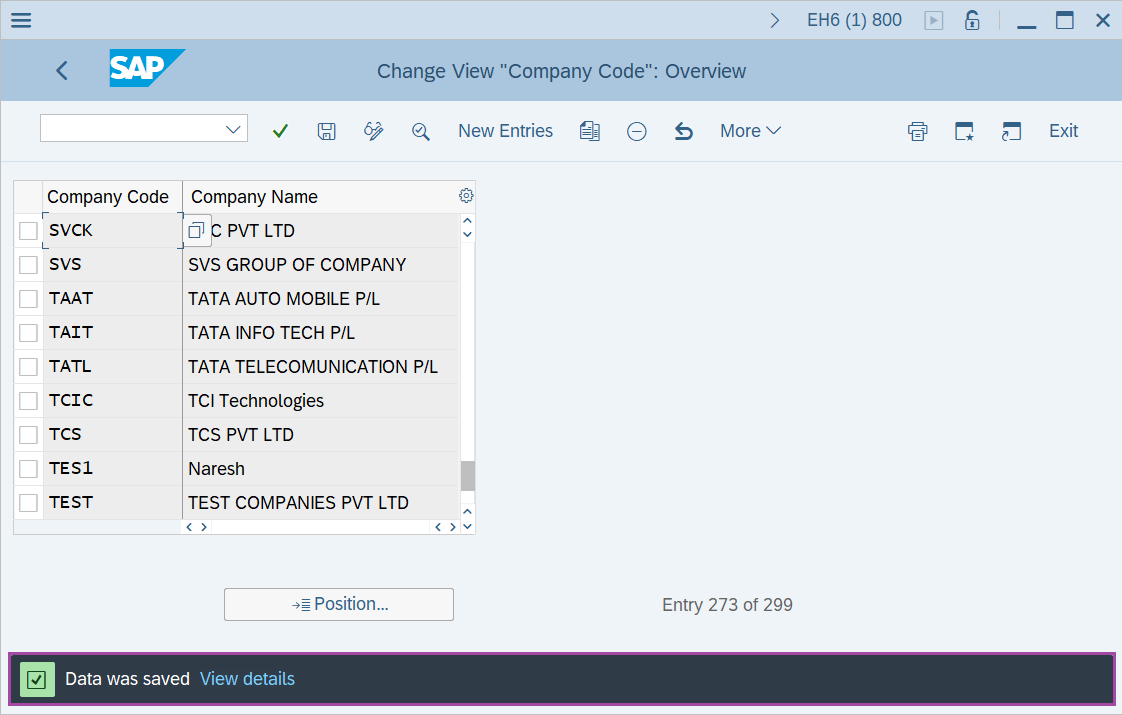
Thus the company code is created.
Technical details –
- Transaction code: OX02
- Menu path: SPRO → IMG Reference → Enterprise Structure → Definition → Financial Accounting → Edit, Copy, Delete Company Code.