
SAP PP Create Work Center
When you create a work center, you are telling SAP where and how different production operations will be carried out.
Work centers are heavily used in Routings and Production Orders. They help SAP calculate execution time, cost, and capacity loads for each operation. Without a work center, SAP cannot plan or schedule production steps properly.
Prerequisites -
- A work center is always linked to a cost center.
- To handle this properly, the factory calendar and shift schedules must be set up in SAP.
- Before creating a work center, activity types must be created
Here’s a step-by-step to Create Work Center –
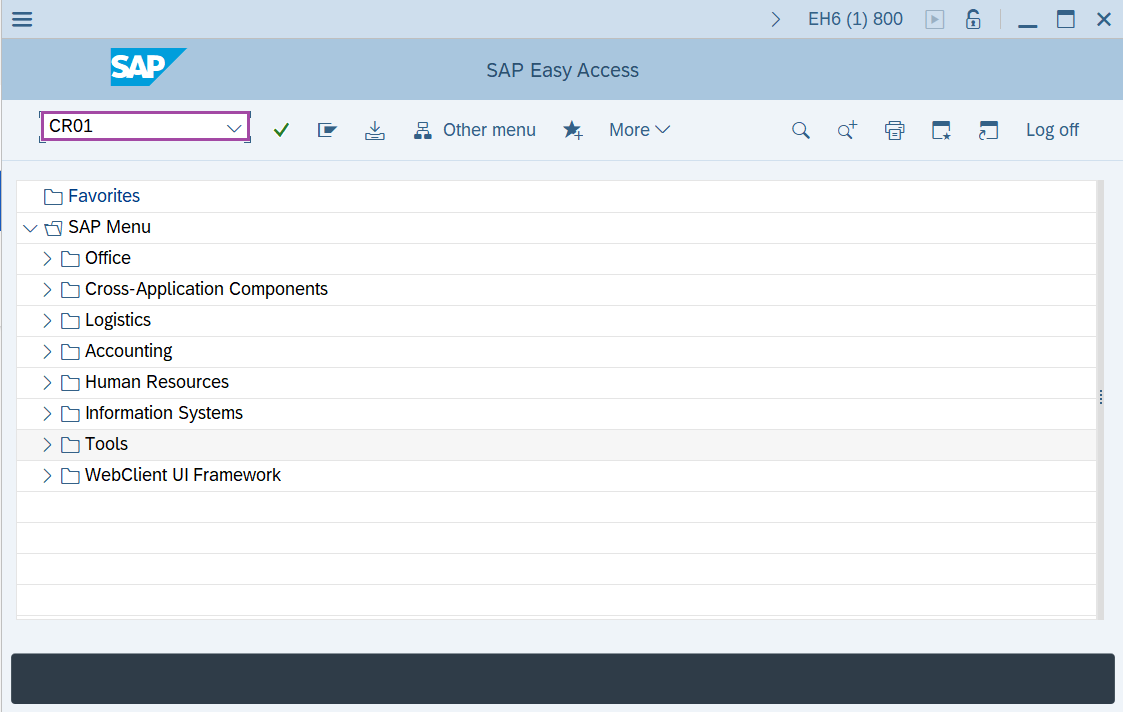
Step-1: - Enter the transaction code CR01 in SAP command field and press Enter to continue.
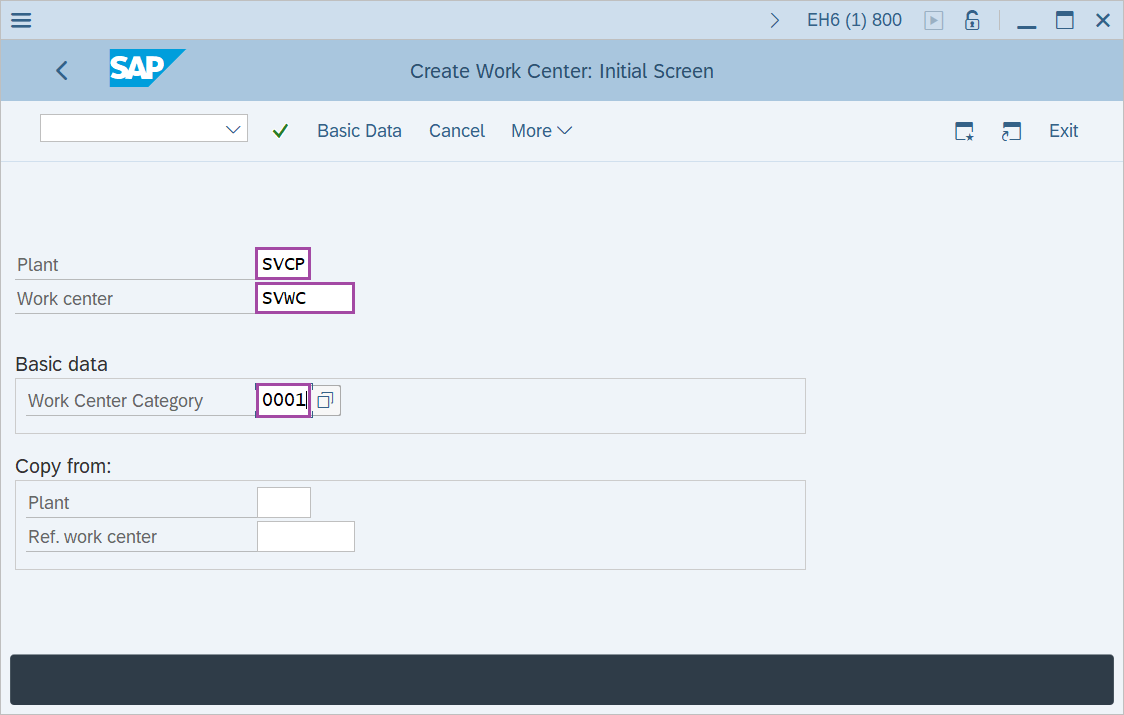
Step-2: - Create Work Center: initial screen window appears. Enter the details of “Plant code” “Work center name” and “work center category”.
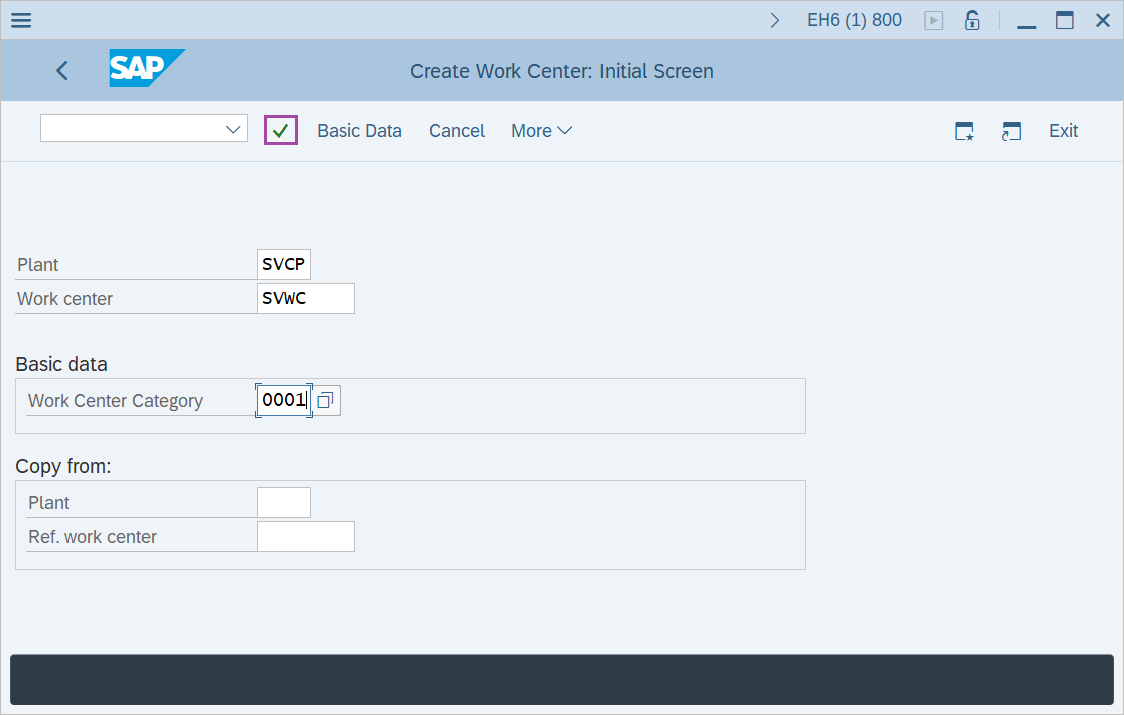
Step-3: - After the details are entered, click on Enter to continue.
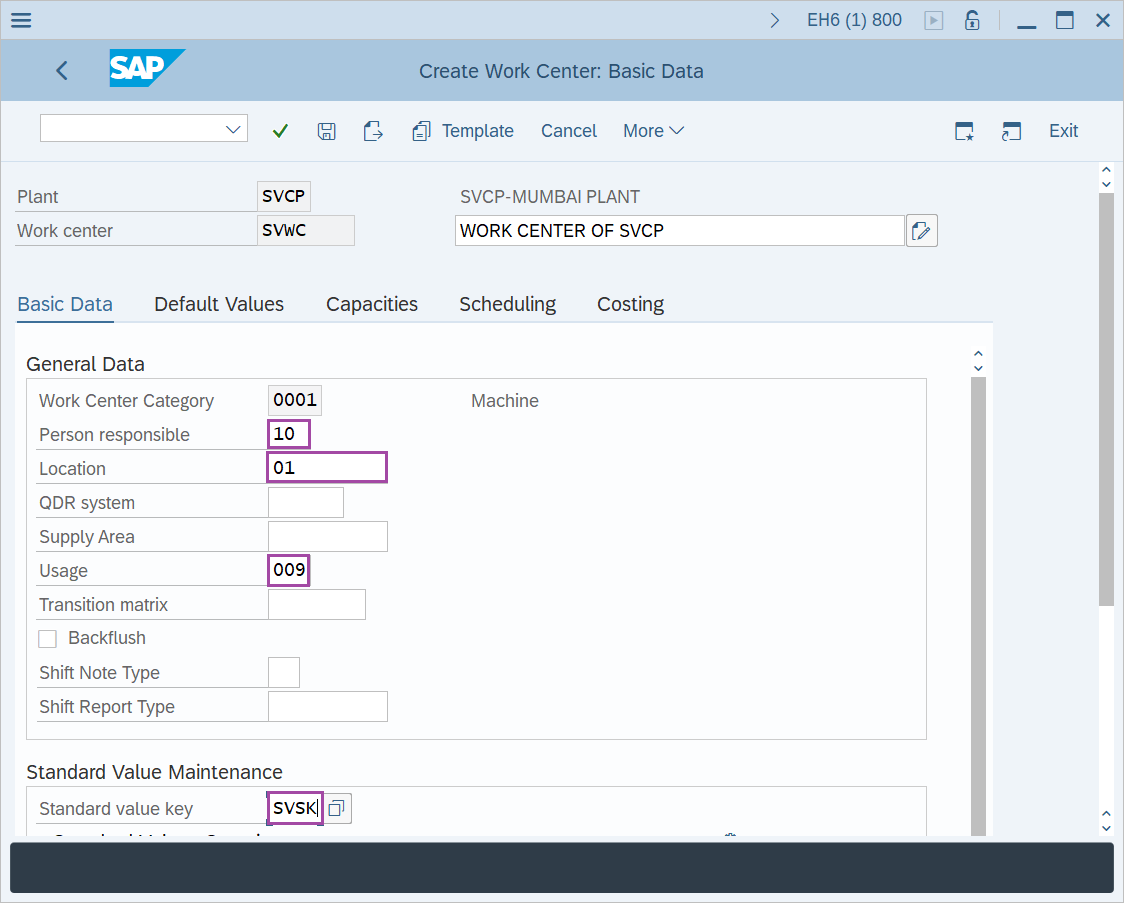
Step-4: - A window appears as Create Work Center: Basic data. Fill the data in work center name, work center category, usage, standard value key, and efficiency rate as 100.
Step-5: - Select the default values and enter control key and standard values unit.
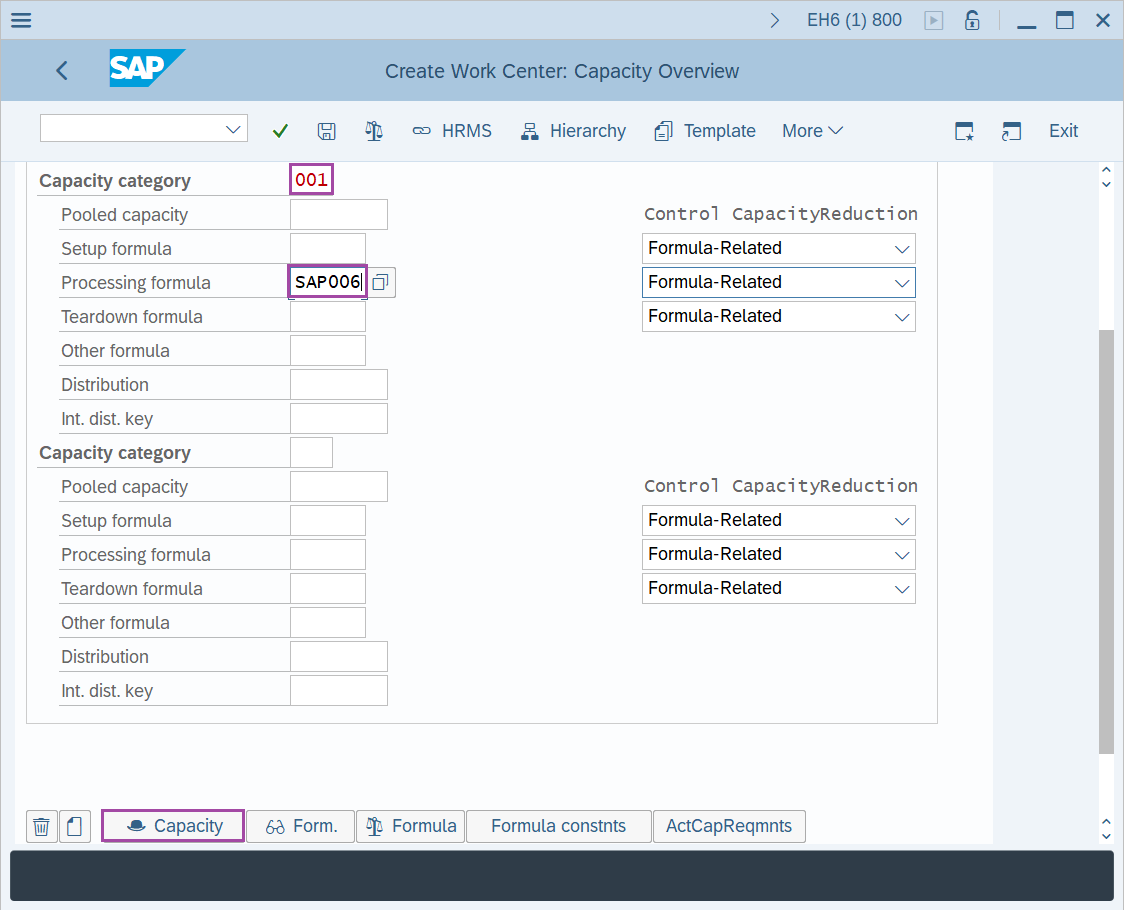
Step-6: - Then select the capacities and update the capacity category and processing formula.
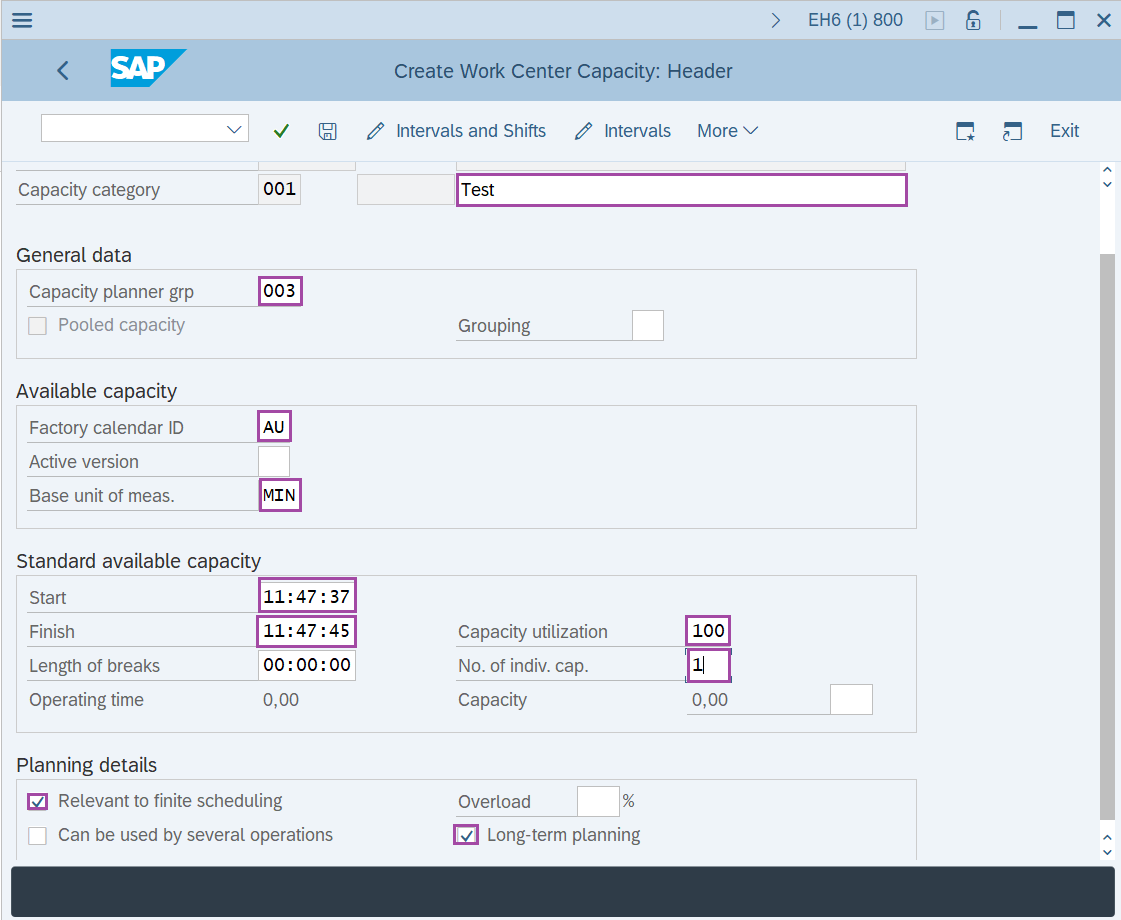
Step-7: - Create Work Center Capacity: Header window appears. The fields Capacity planner group, Factory calendar ID, Grouping, Base unit of measure, standard available capacity and Planning details are filled with the required data.
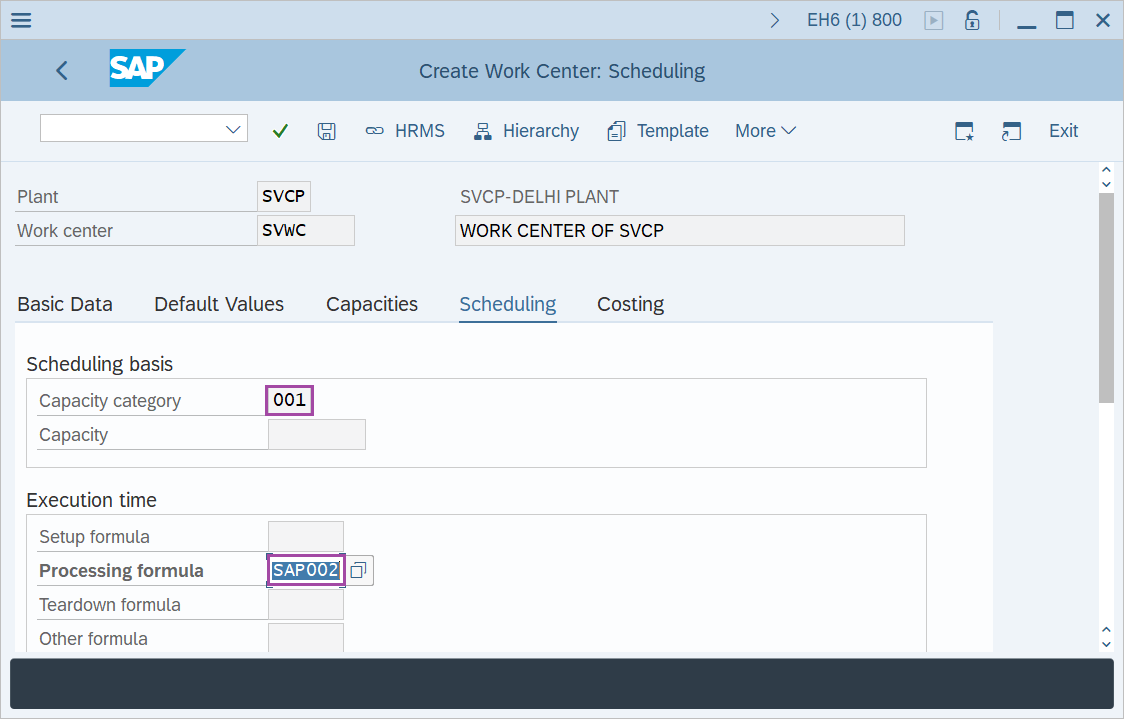
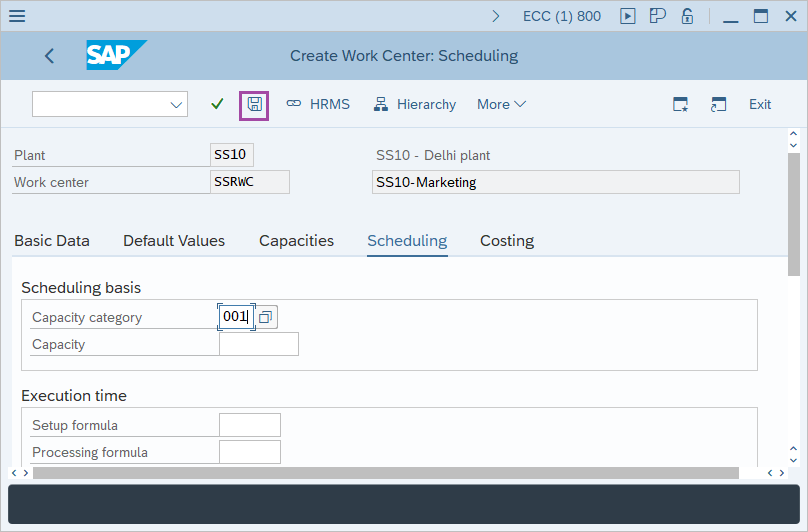
Step-8: - Create Work Center: Scheduling window appears, enter Capacity Category in Scheduling basis.
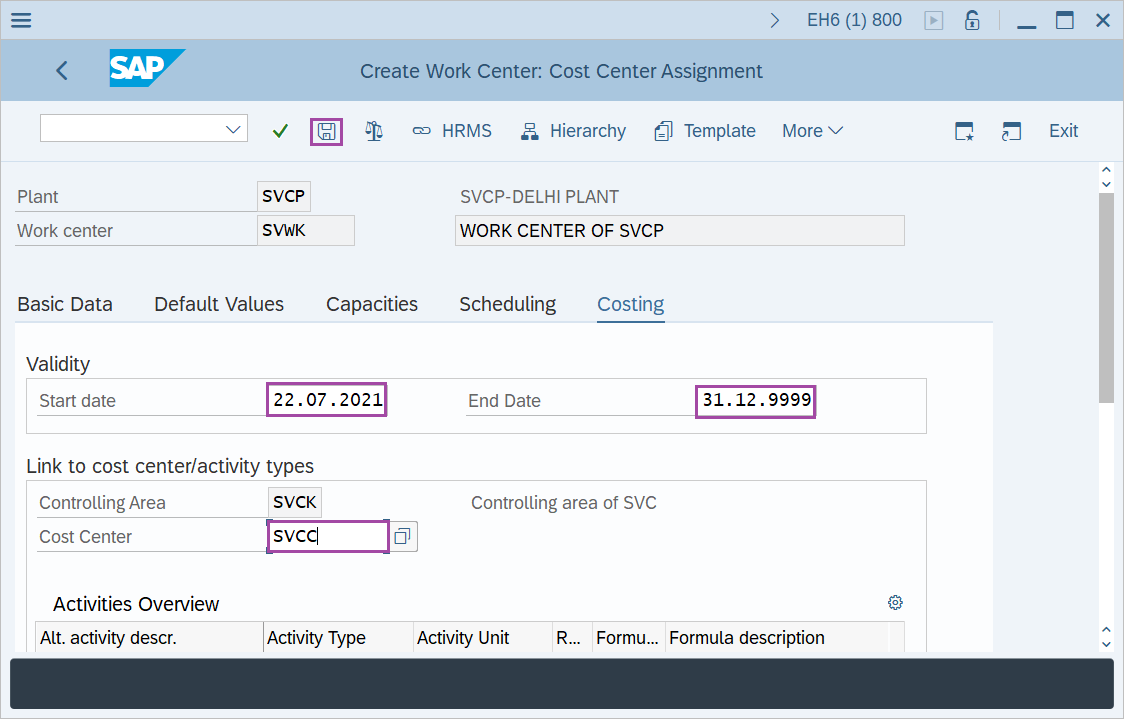
Step-9: - Once all required data fields is filled, click on Save icon to save the data.
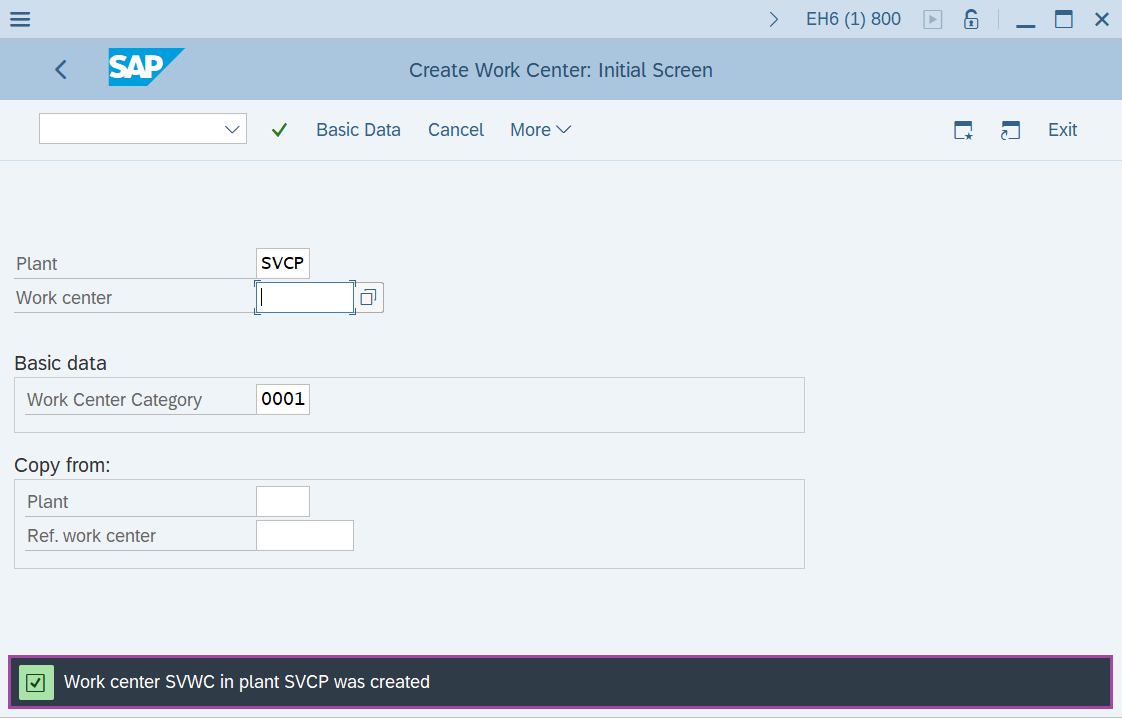
Step-10: - Status bar displays the below message after work center is created successfully.

Technical details –
- Transaction code: CR01
- Menu path: SAP Menu → Logistics → Production → Master Data → Work Centers → Work Center → Create.