
SAP PP How to Display Stock of Multiple Materials
Displaying stock for multiple materials gives you a consolidated view of inventory for planning, procurement or production.
SAP provides reports that let you pull up stock data for a set of materials — their quantities, stock types (unrestricted, consignment, quality, blocked, etc.), storage locations, values, etc.
Prerequisites -
- The materials you want to check already exist in the system.
- Stock should has been posted (i.e. goods receipts, issues, transfers) so there is actual data to report.
- You should know the relevant filter criteria: plant, storage location, material type/group, or material number ranges (to narrow down results).
Here’s a step-by-step to Display Stock of Multiple Materials –
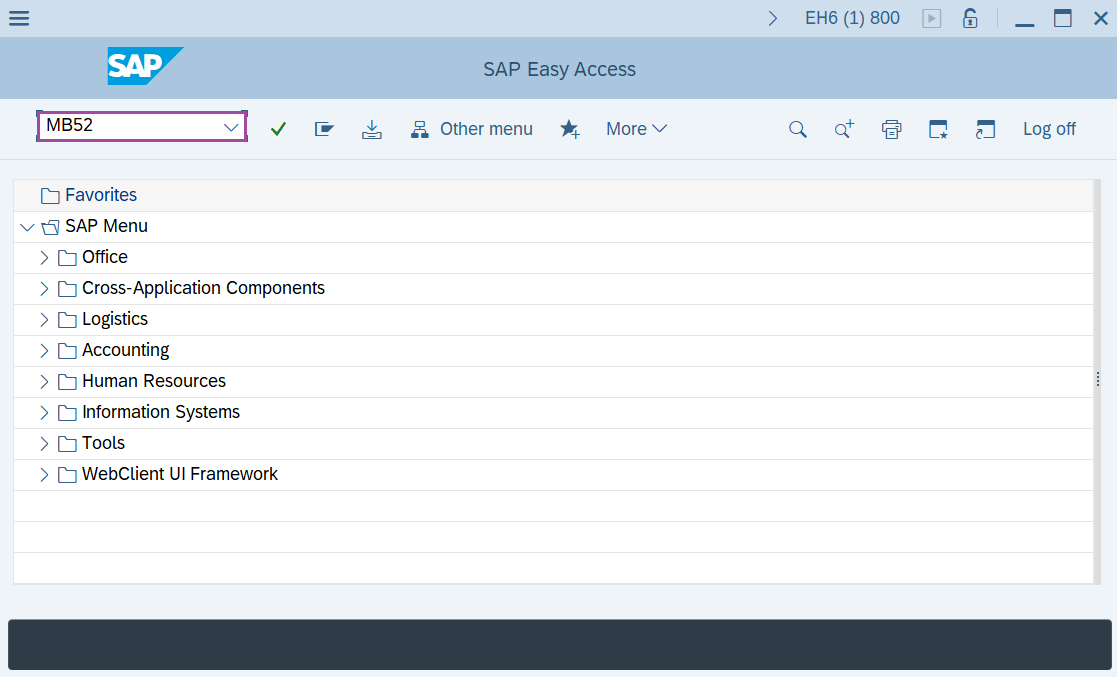
Step-1: - Enter the transaction code MB52 in SAP command field and press Enter to continue.
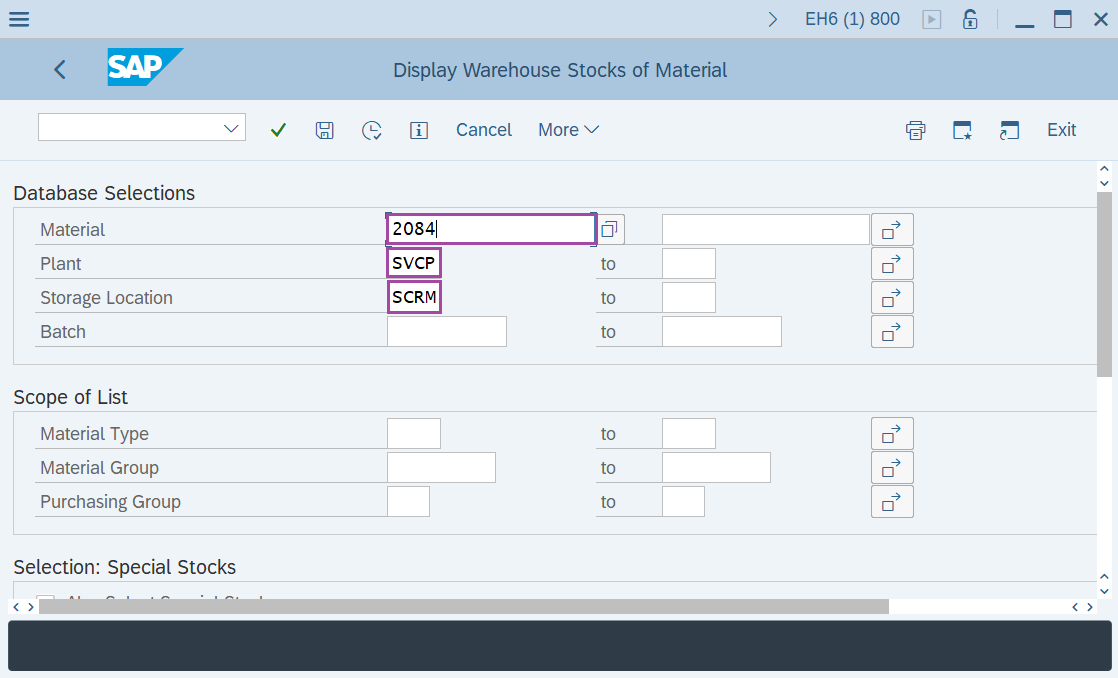
Step-2: - Display Warehouse Stocks of Material window appears. Enter details in the fields Material, Plant and Storage Location.
- By clicking on the arrow symbol on the level of material filed allows to select multiple materials.
- If the Material field is blank then it show the report for all materials.
- If the Storage Location field is blank then it show the report for all storage locations.
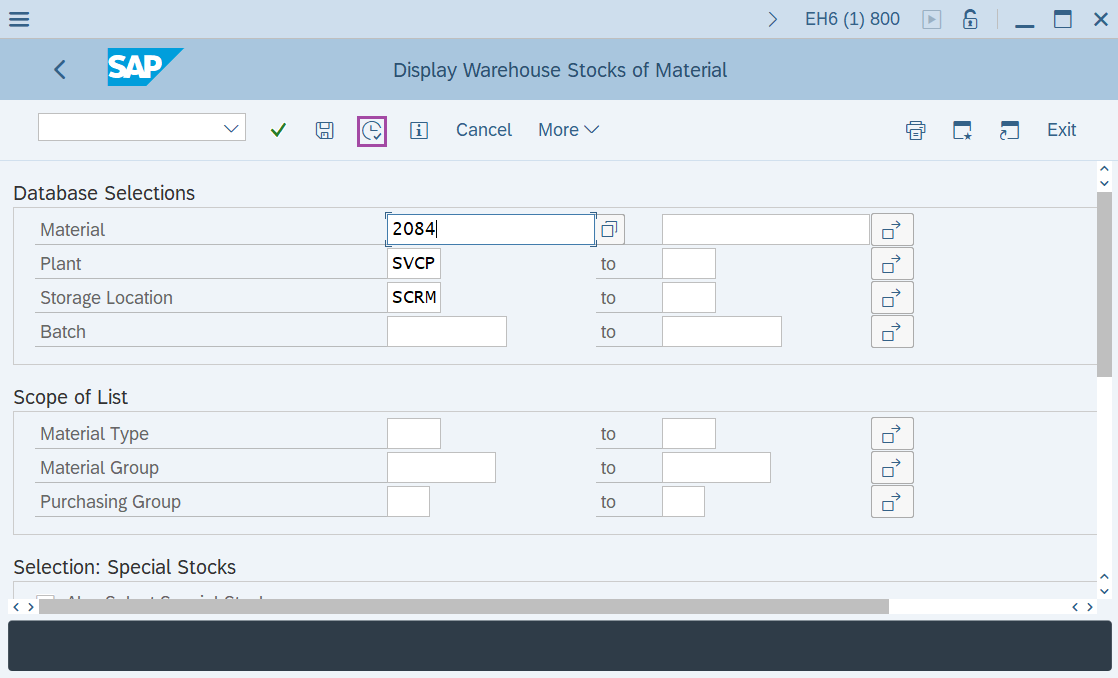
Step-3: - After entering the details, click on the Execute button.
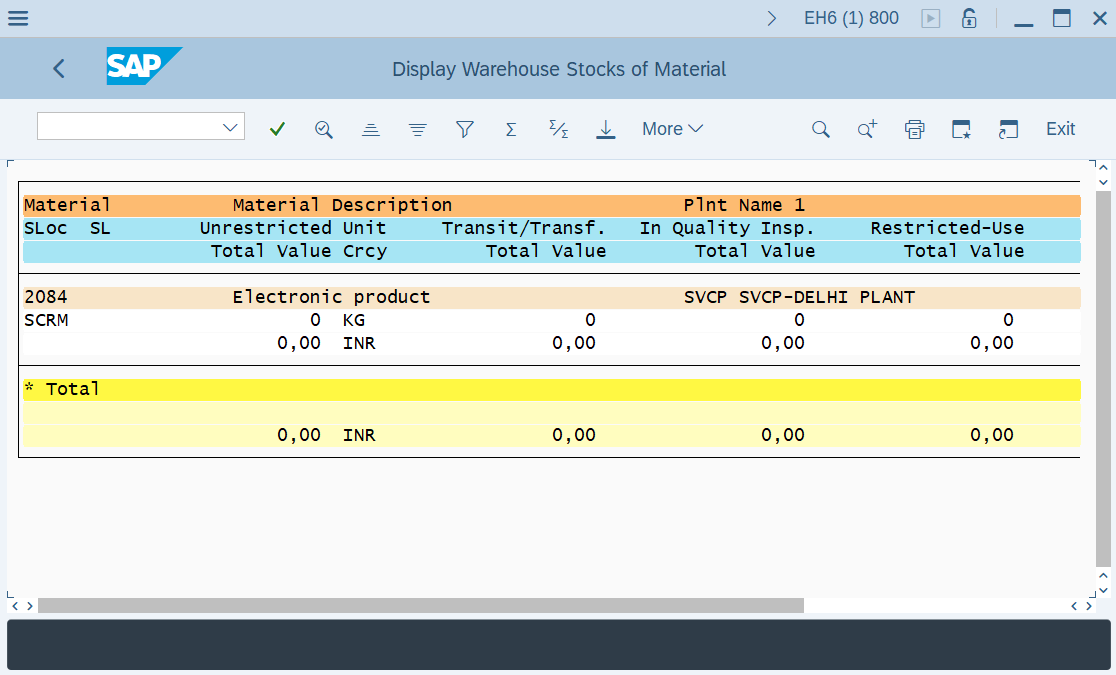
Step-4: - Display Warehouse Stocks of Material window appears with details of stock.
Technical details –
- Transaction code: MB52
- Menu path: SAP menu → Logistics → Material management → Inventory Management → Environment → Stock → Warehouse Stock.