
SAP PP How to Create Planning Scenario
A planning scenario in SAP PP (or LTP — Long-Term Planning) is basically a “what-if” container: We define a scenario that holds forecasted demand (via planned independent requirements) and other settings, then run a simulative MRP/long-term planning run to see what supply (planned production or purchase orders), capacity, and material requirements would look like — without affecting your real/live data.
This allows planners to test future demand scenarios, check resource capacity, material availability and vendor readiness — all before we commit anything to live operations.
Prerequisites -
- We must have meaningful forecasted demand data for the materials we want to plan.
- All relevant master data must exist: materials, BOMs, routings, work centers, etc.
- We should know which plants will be part of the scenario — since planning in SAP is plant-specific.
Here’s a step-by-step to Create Planning Scenario –
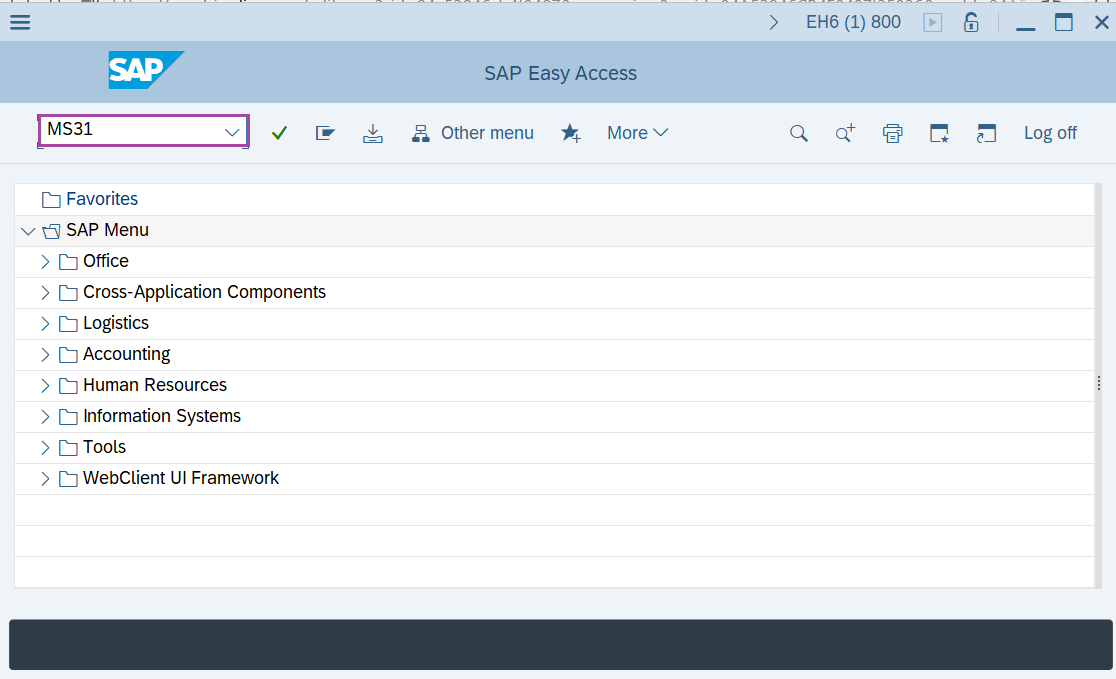
Step-1: - Enter the transaction code MS31 in SAP command field and press Enter to continue.
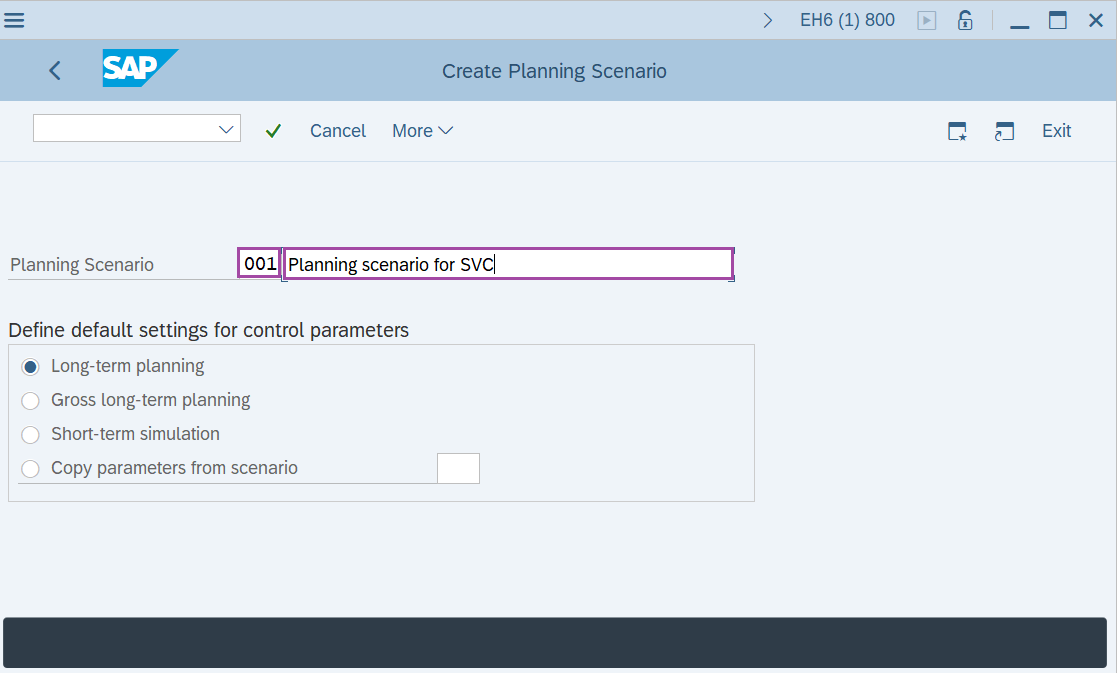
Step-2: - Create Planning Scenario window appears. Enter the details in the field Planning Scenario, an alphanumeric key of choice and description of planning scenario.
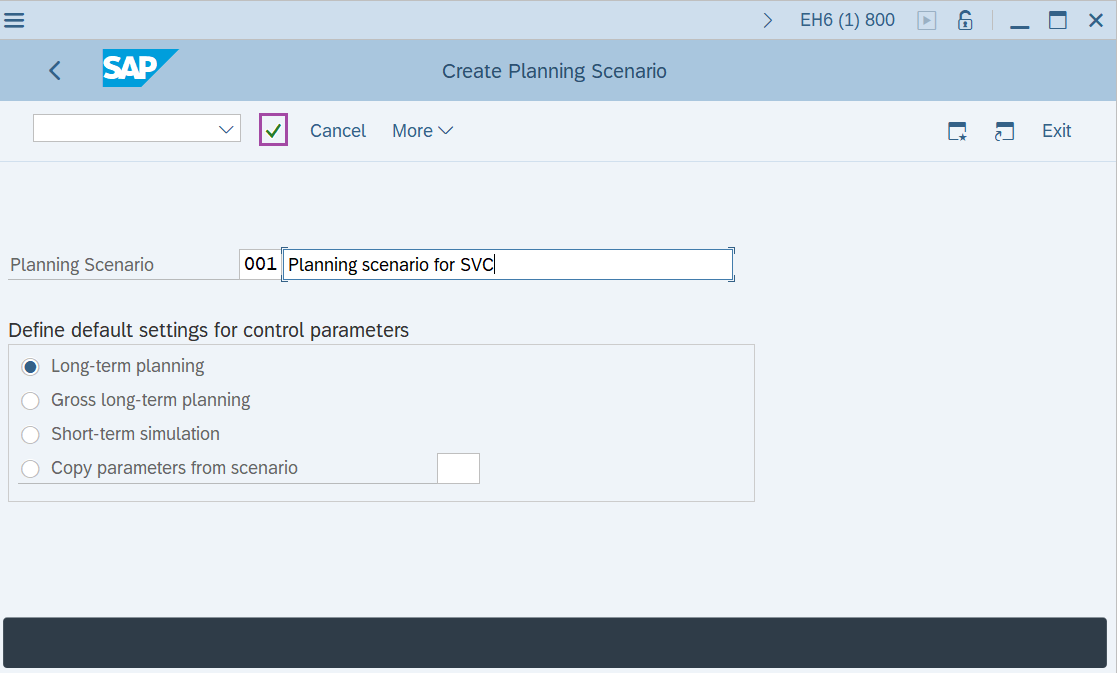
Step-3: - After entering the details press Enter to continue.
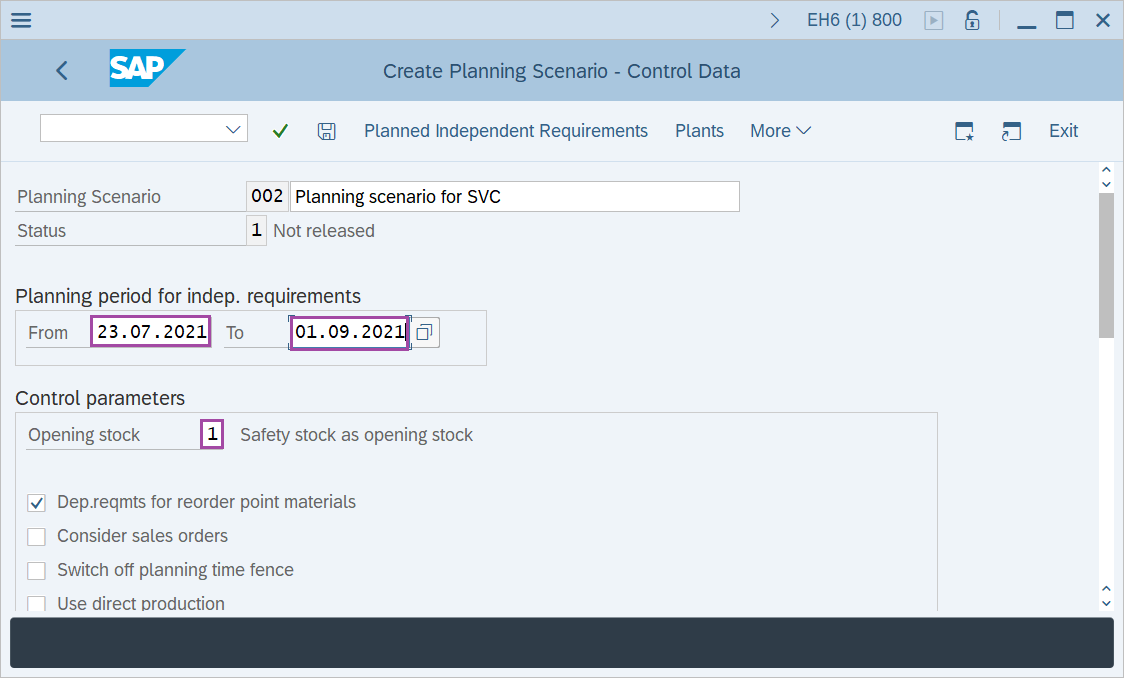
Step-4: - Create Planning Scenario – Control Data window appears. Enter the details of planning period, BOM selection id and unmark the opening stock selection.
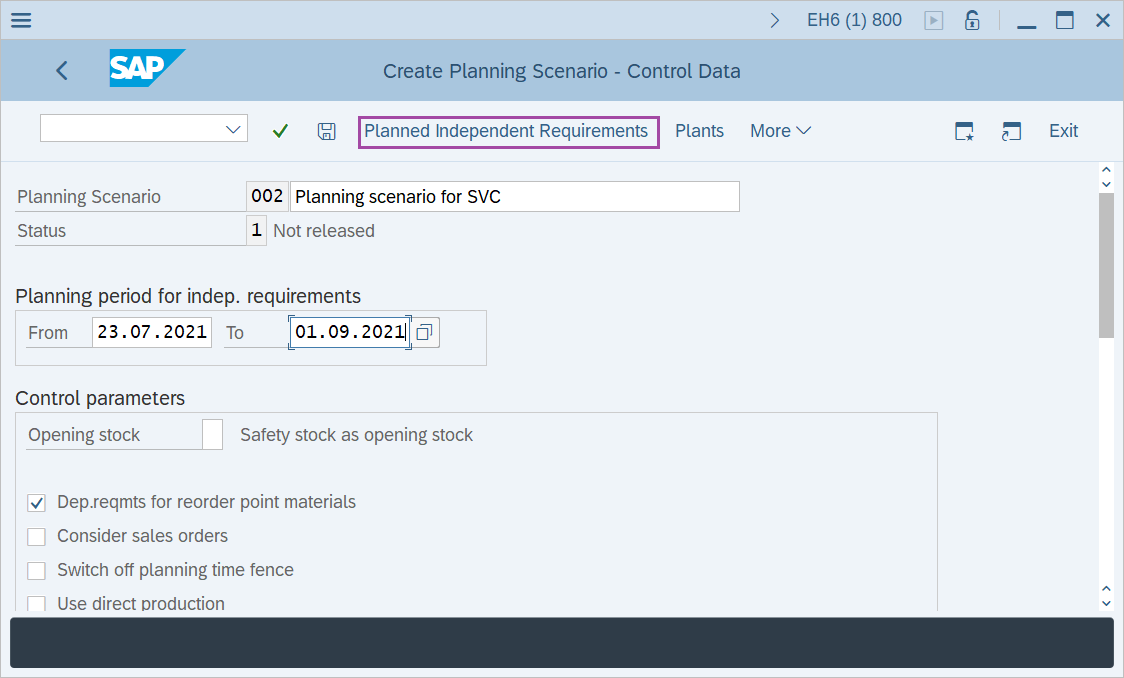
Step-5: - Now select the Planned independent requirement button.
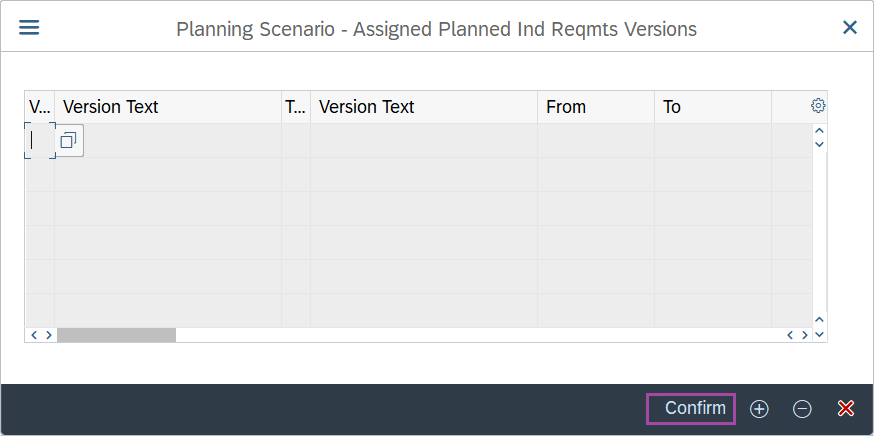
Step-6: - A pop-up window will be opened as Planning scenario – Assigned Planned Ind Reqmts Versions. Enter the version "02" and planning periods and click on Confirm button.
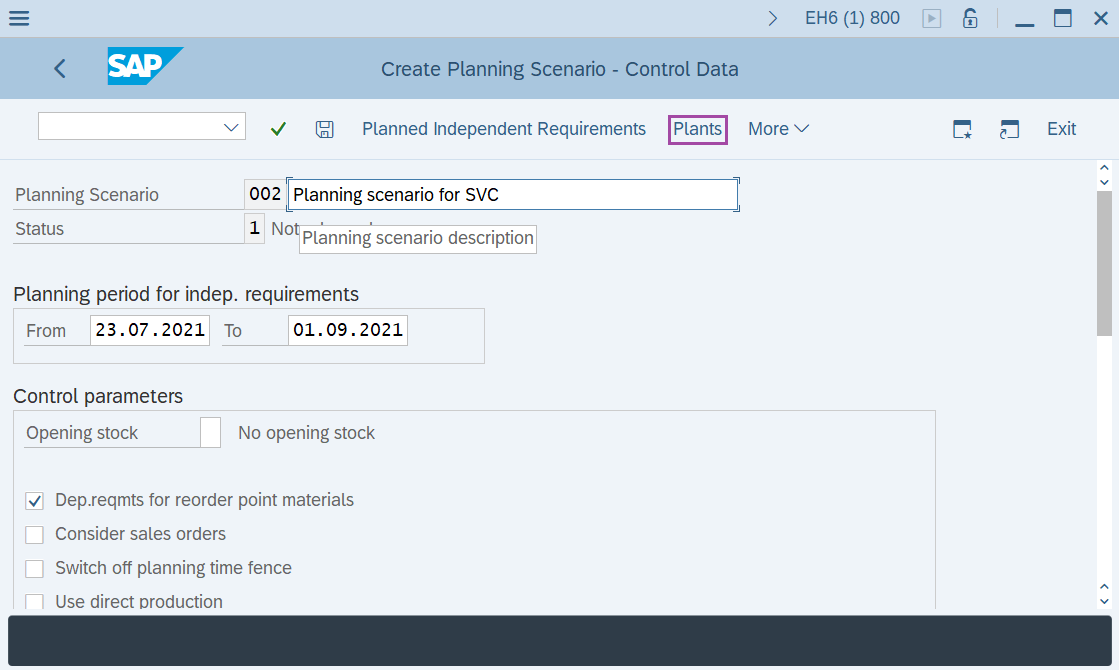
Step-7: - Now select Plants button.
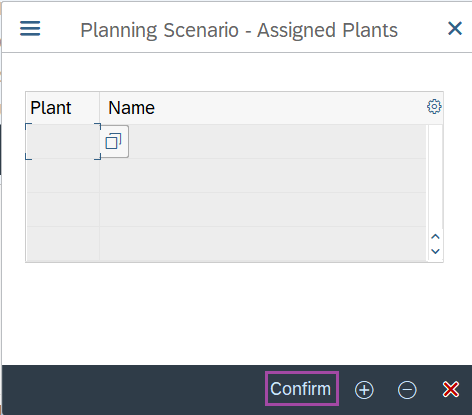
Step-8: - A pop-up window will be opened as Planning scenario – Assigned Plants. Enter the Plant code and click on Confirm button.
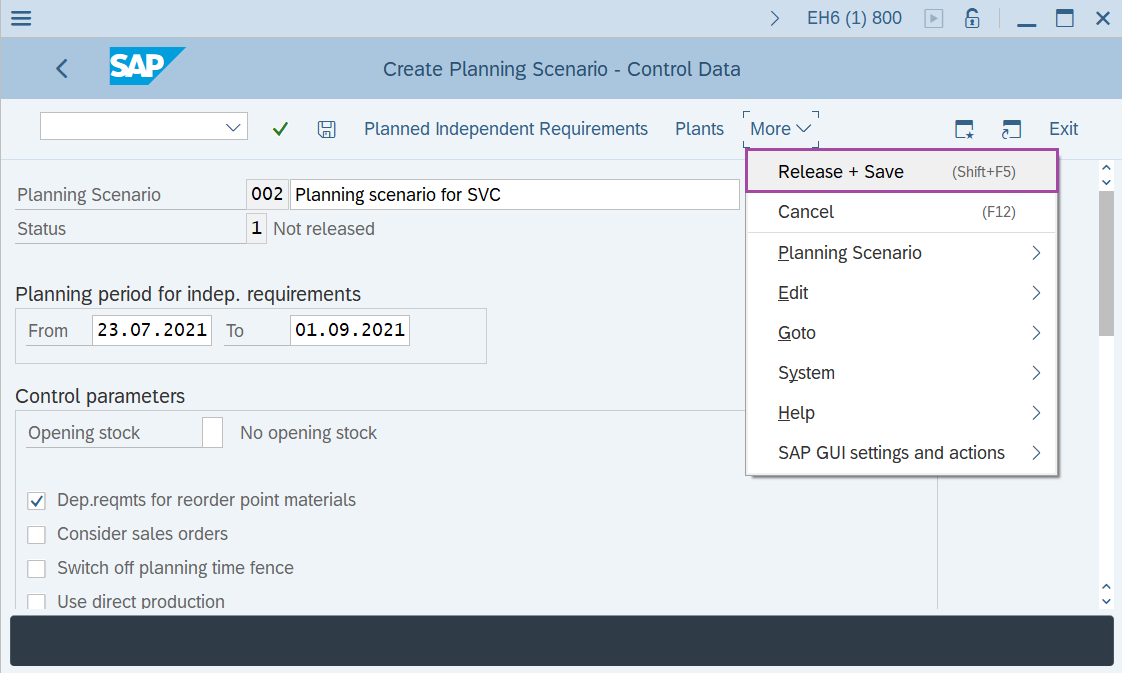
Step-9: - Now select the Release + Save to generate the planning file entries.
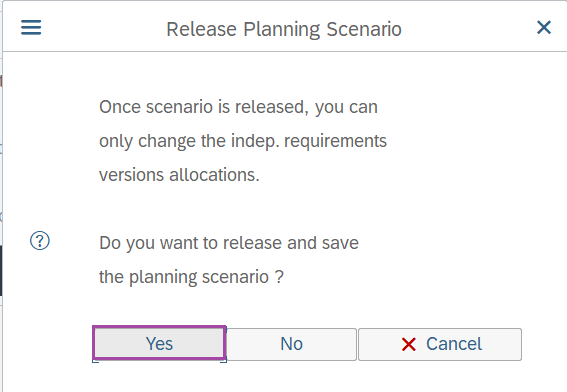
Step-10: - A pop-up window will be appeared to confirm release the scenario. Click on yes.

Step-11: - A pop-up window will be appeared to create planning file entries. Click on Immediately button.
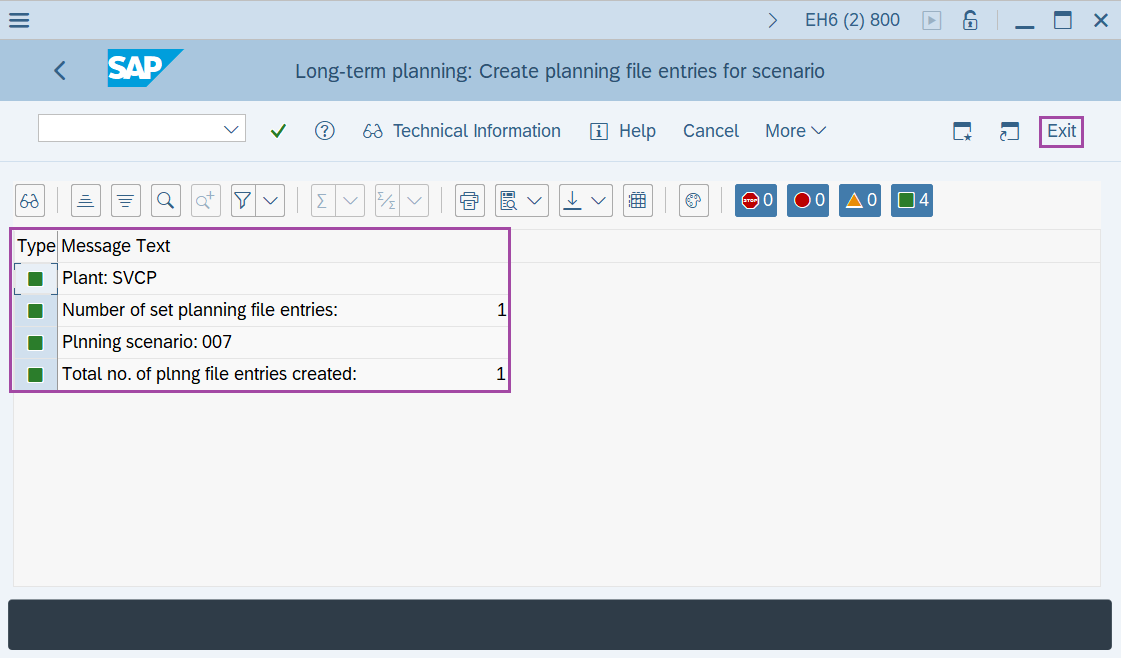
Step-12: - Messages will be displayed about planning file entries which denotes that system has identified number of materials relevant for Long term planning run. Click on Exit button to return to SAP Easy Access screen.
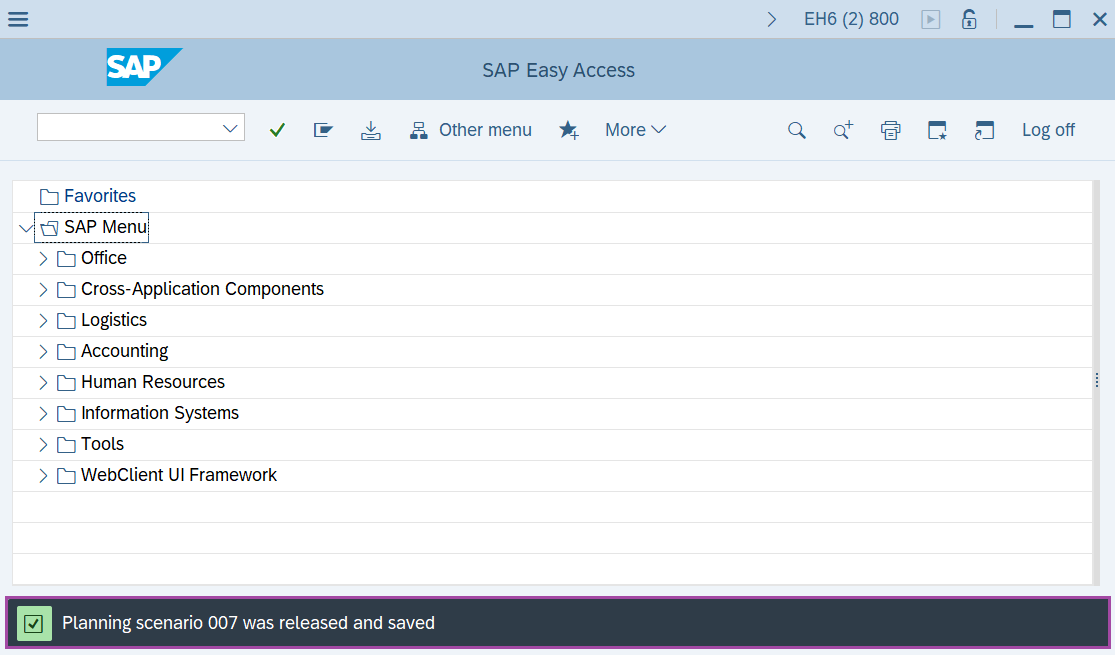
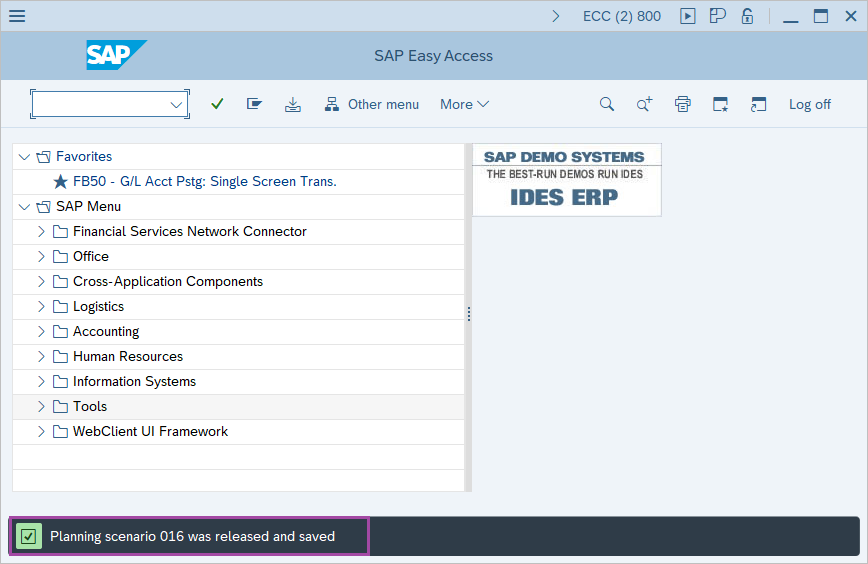
Step-13: - Status bar displays the below message indicating that planning scenario was released and saved.
Technical details –
- Transaction code: MS31
- Menu path: SAP menu → Logistics → Production → Production planning → Long-term planning → Scenario → Create.