
SAP PP Change Bill of Material (BOM)
When you “change a BOM,” you are updating an existing BOM for a material — this could mean adjusting component quantities, adding or removing components, or changing validity dates.
MRP depends heavily on BOM accuracy. Any incorrect BOM data can lead to shortages, excess stock, or wrong procurement. Changing BOM ensures planning and scheduling run smoothly.
Prerequisites -
- The material for which you want to change the BOM must already exist in SAP.
- An existing BOM should already be created.
Here’s a step-by-step to Change Bill of Material (BOM) –
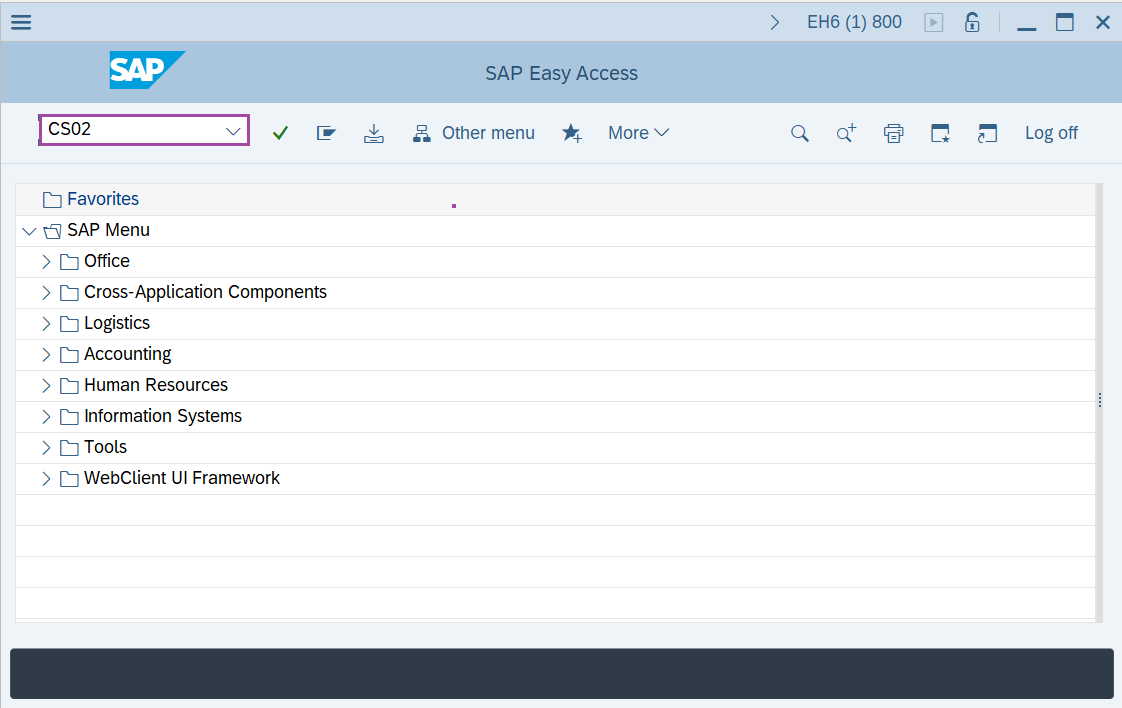
Step-1: - Enter the transaction code CS02 in SAP command field and press Enter to continue.
Step-2: - Change material BOM: Initial Screen window appears. Enter the data for Material number, plant code and BOM usage.
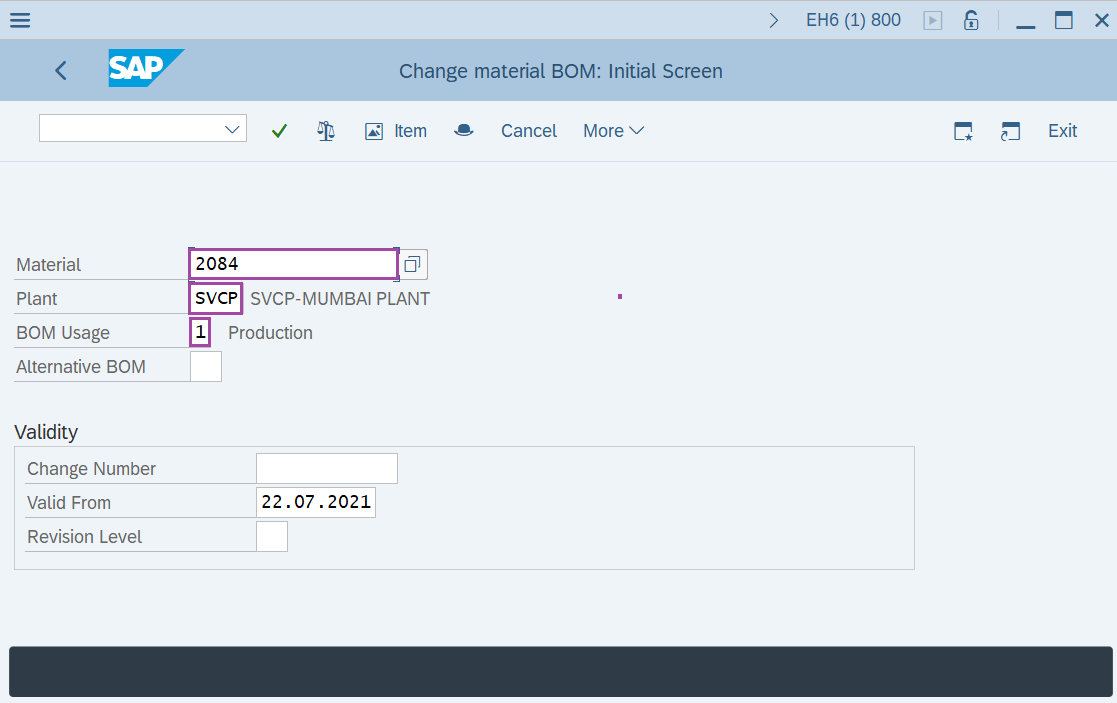
Step-3: - After entering the details, click on Enter to continue.
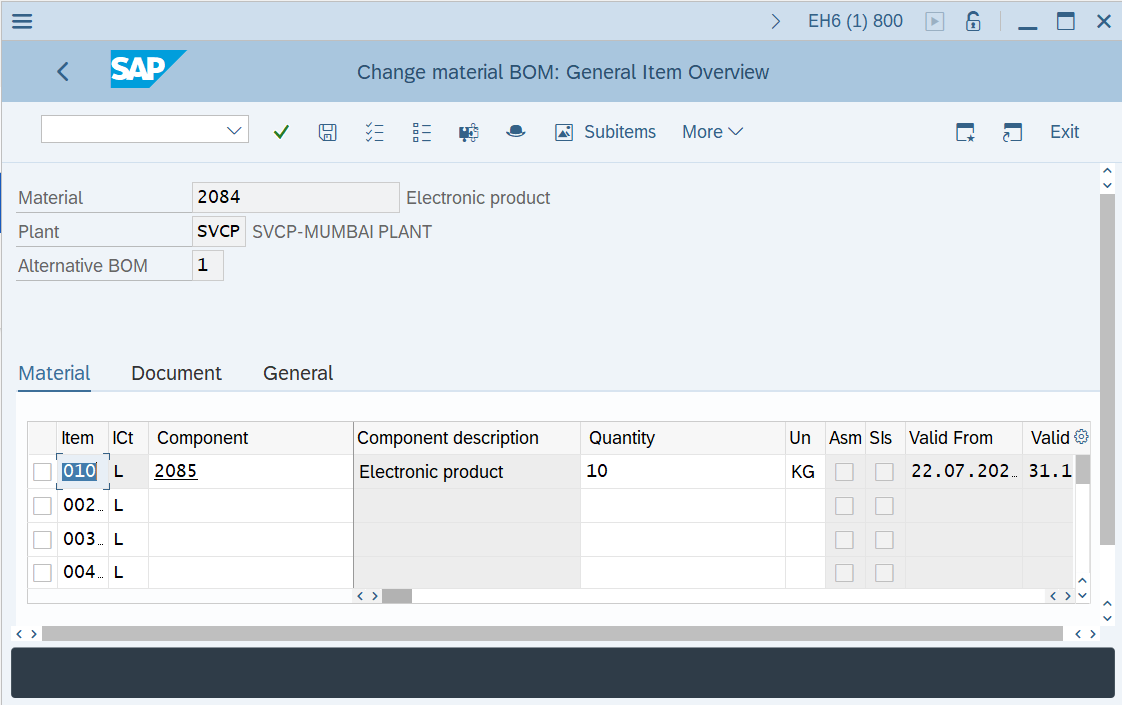
Step-4: - A window appears as Change material BOM: General Item Overview, resulting a BOM already existing.
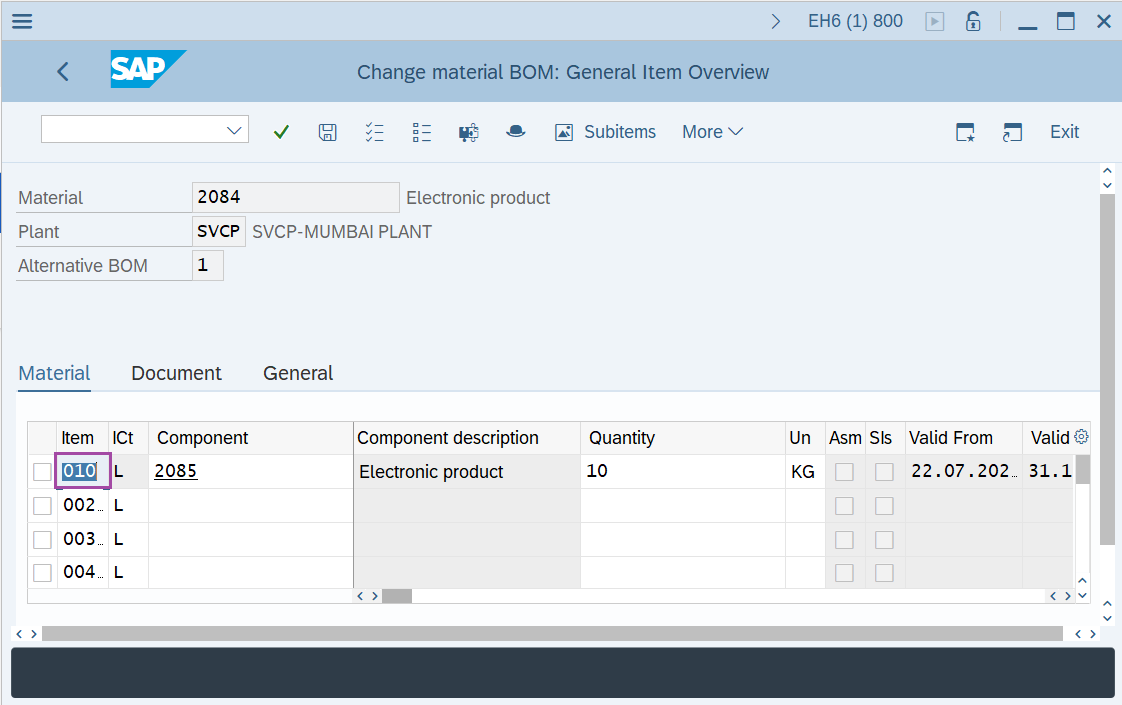
Step-5: - Double click on item number to change the BOM details.
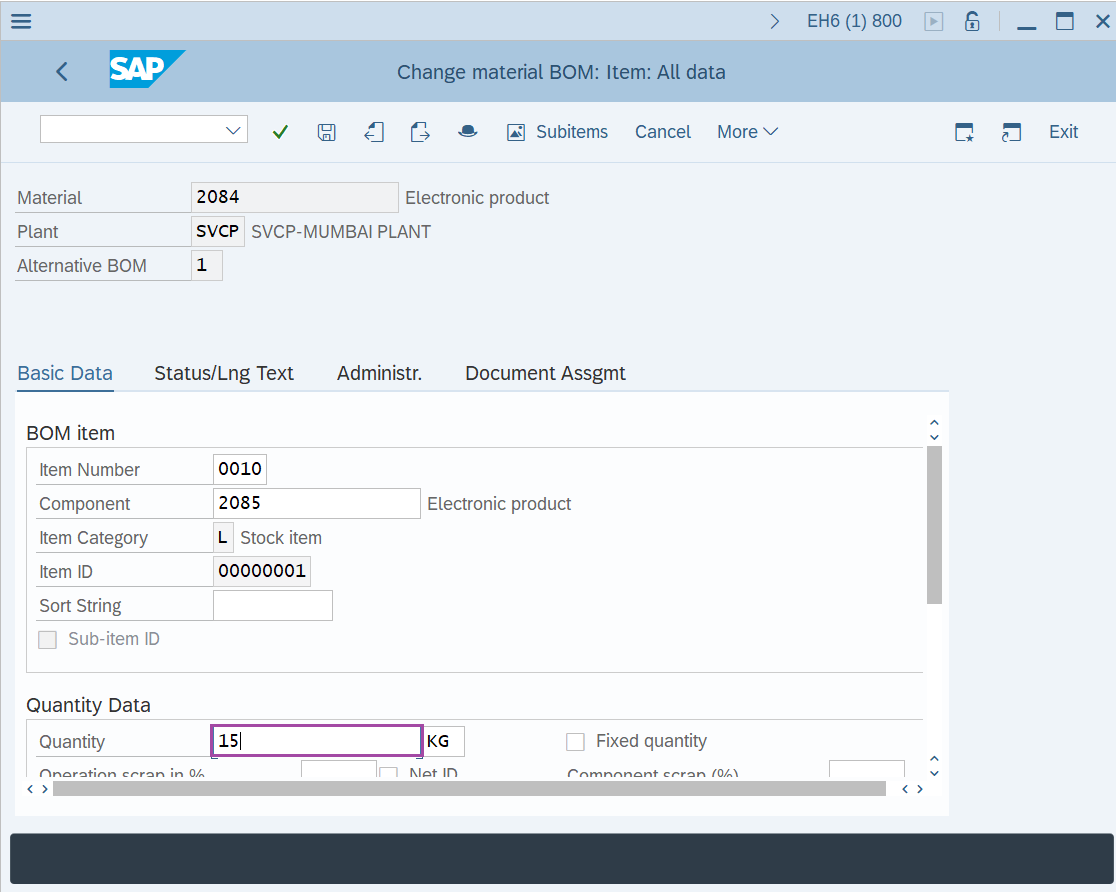
Step-6: - Change material BOM: Item: All data screen appears with BOM details.
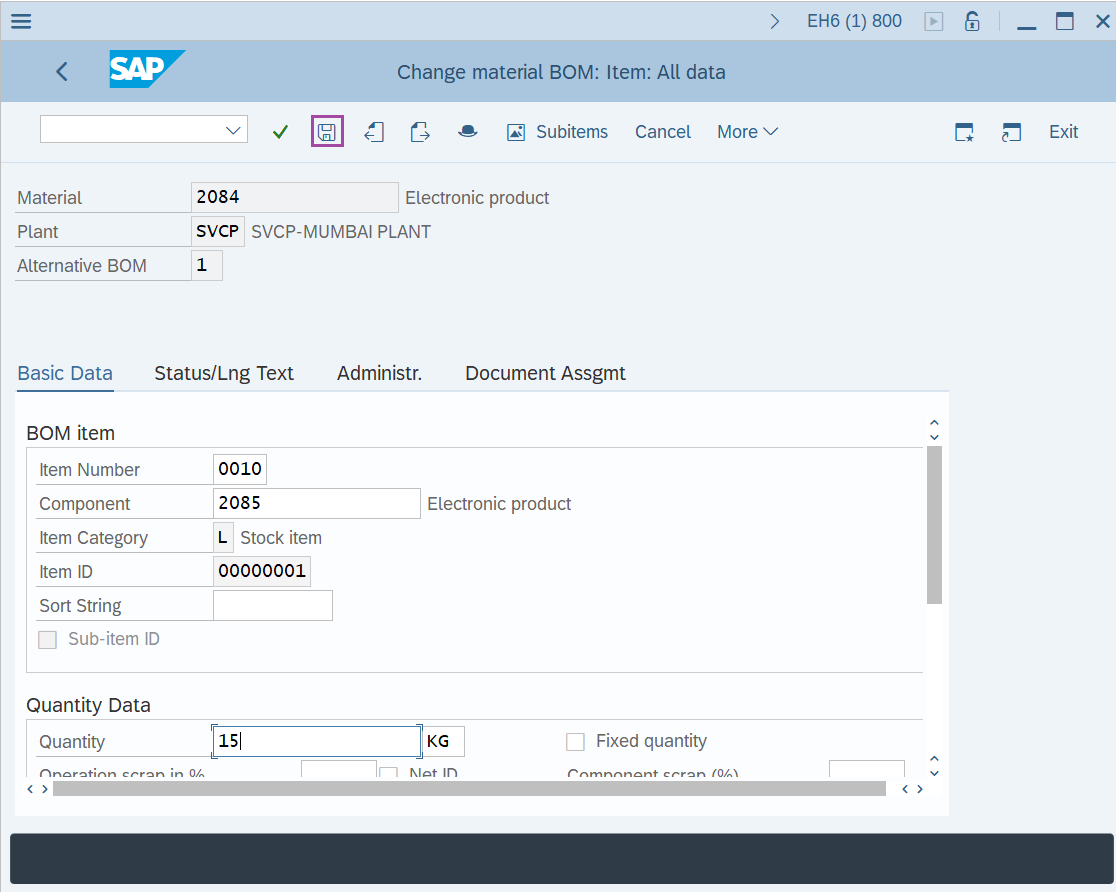
Step-7: - Once all the changes are done, click on the Save button.
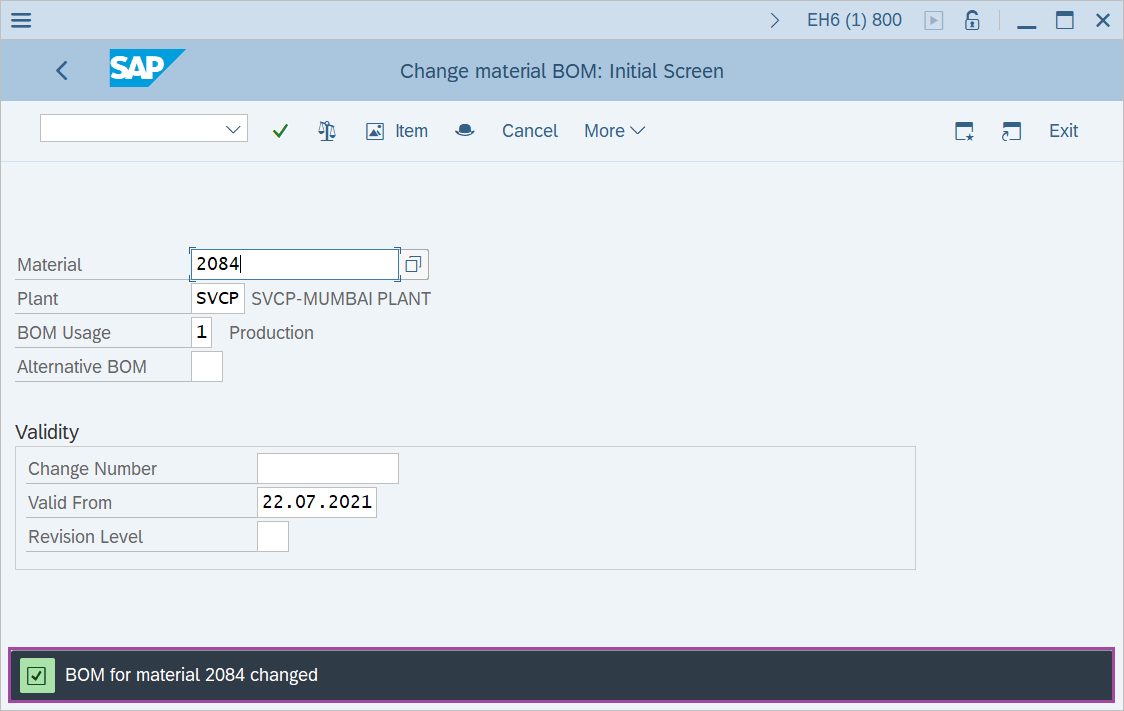
Step-8: - Status bar displays the below message once the values saved successfully.

Technical details –
- Transaction code: CS02
- Menu path: SAP Menu → Logistics → Production → Master Data → Bills of Material → Bill of Material → Material BOM → Change.