
SAP PP Assign Purchase Organization to Company Code
Before you go ahead and make the assignment, you should ensure that both the company code and purchase organization must already be defined.
When you “assign a Purchase Organization to a Company Code”, you’re telling SAP: “This purchasing structure operates for this legal entity”. Without that link, you may run into procurement postings that are not correctly tied to a legal entity’s accounting.
Here’s a step-by-step to assign a purchase organization to company code –
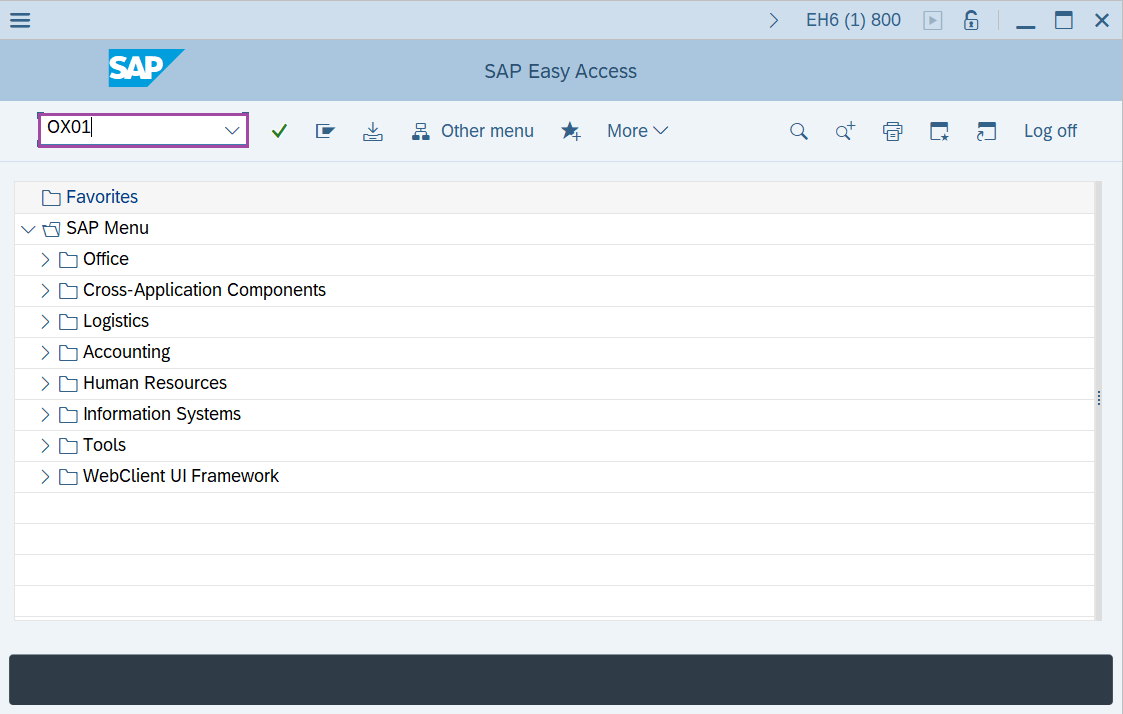
Step-1: - Enter the transaction code OX01 in SAP command field and press Enter to continue.
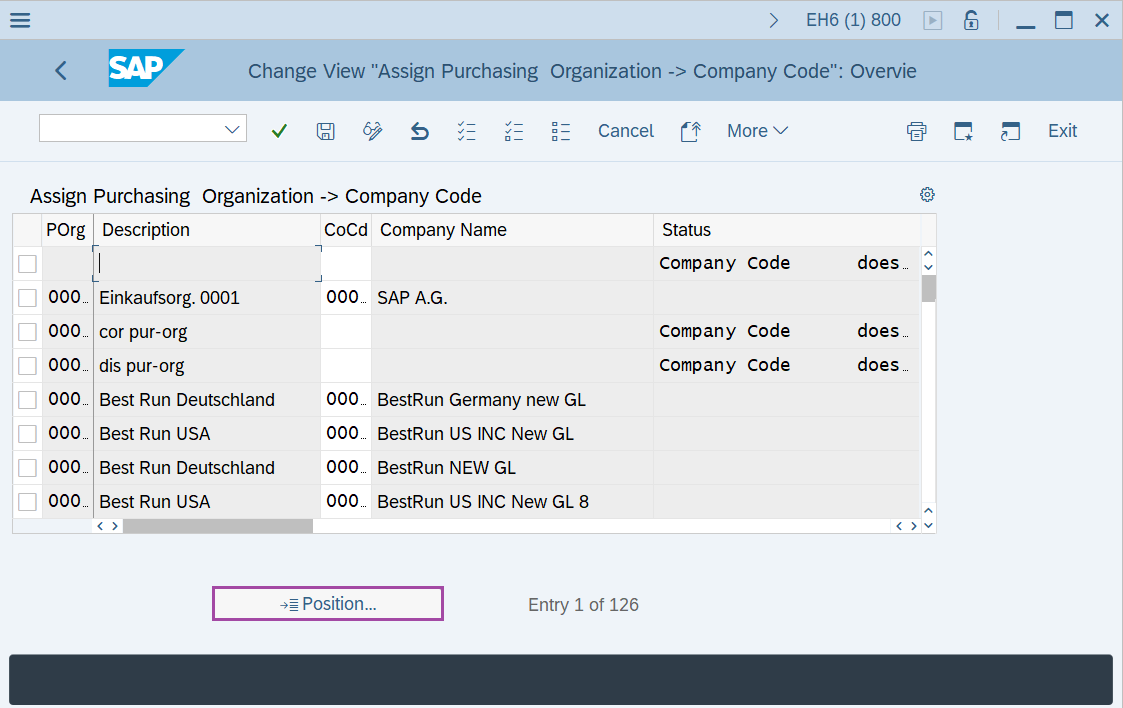
Step-2: - Change View “Assign Purchasing Organization –> Company Code”: Overview window appears. Click on “Position” button.
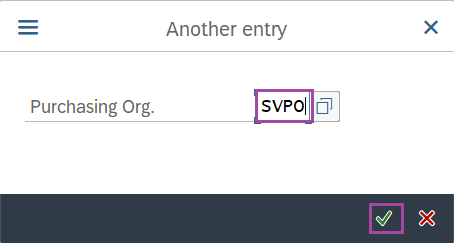
Step-3: - A prompt box appears as Another entry, enter the Purchasing Organization code and press Enter to continue.
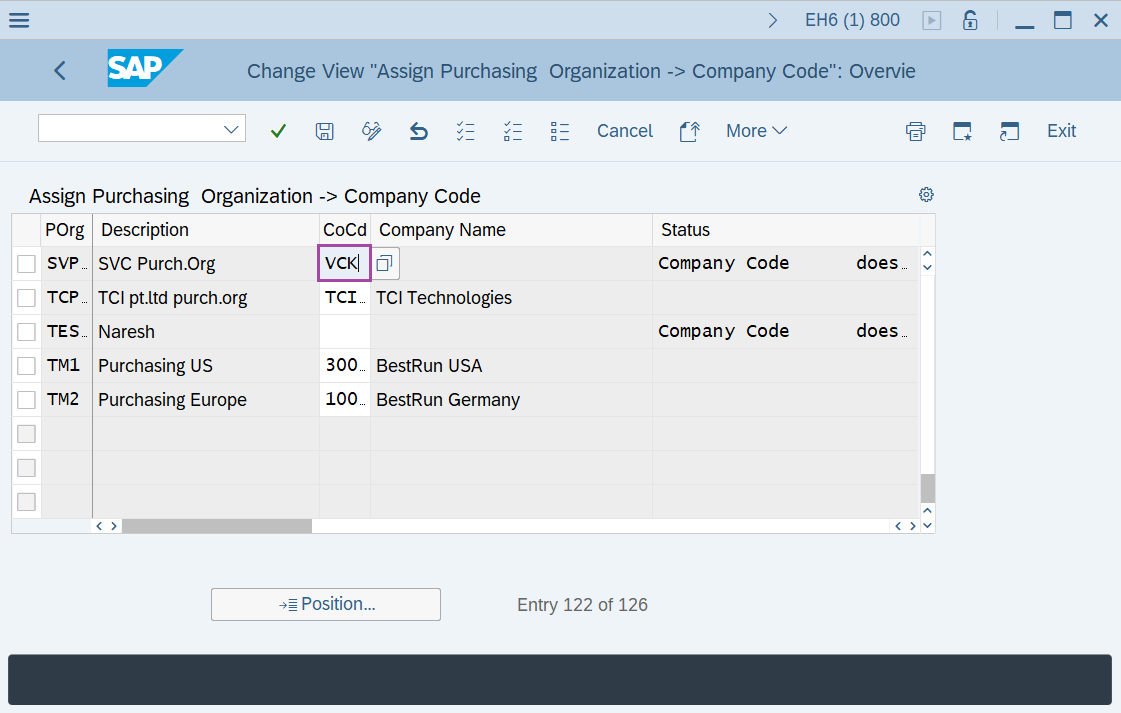
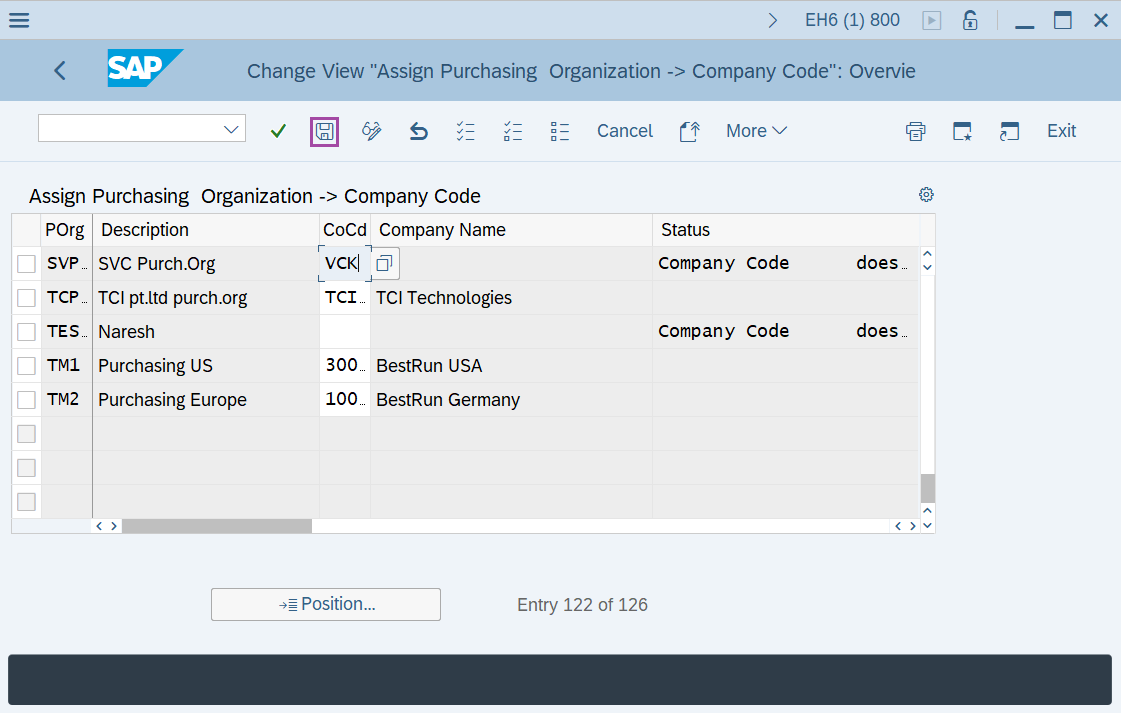
Step-4: - Enter the company code in CoCd field.
Step-5: - After updating the Company code, click on Save to save the details.
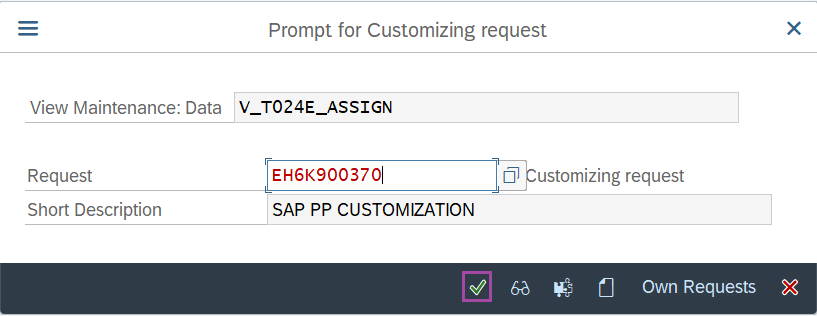
Step-6: - Select the “customizing request” and click on right mark to continue.
Step-7: - Status bar displays the below message once the values saved successfully.
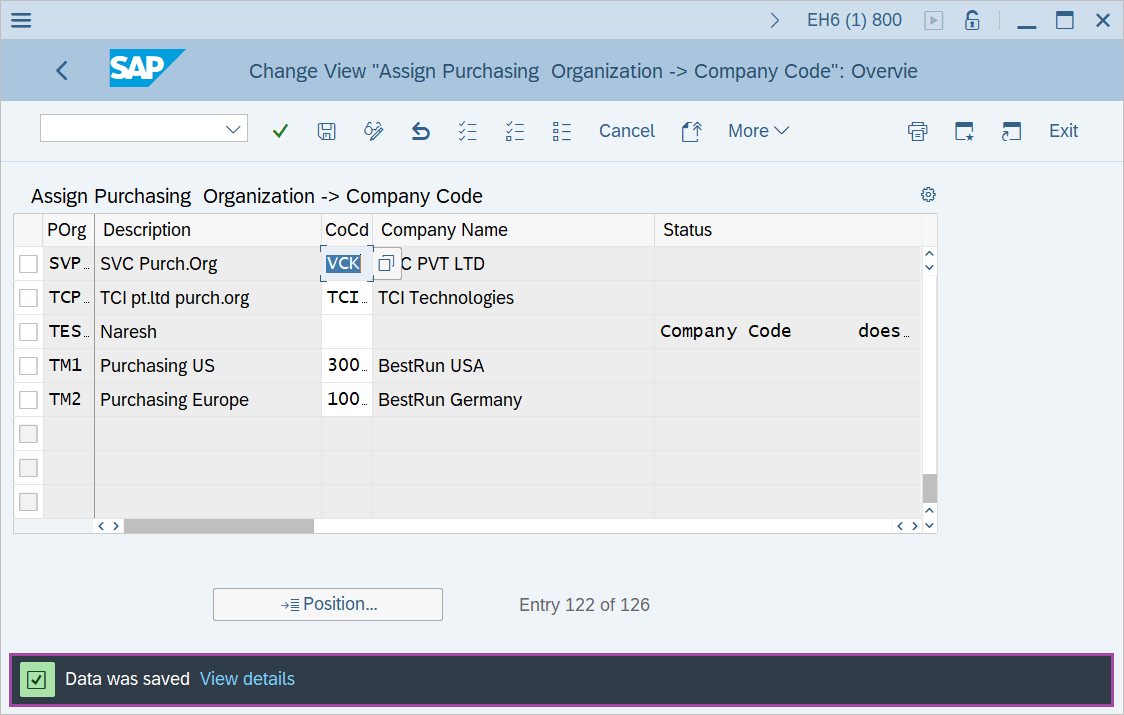
Thus, the Purchase Organization is assigned to Company code.
Technical details –
- Transaction code: OX01
- Menu path: SPRO → IMG Reference → Enterprise Structure → Assignment → Material Management → Assign Purchase Organisation to Company Code.