
SAP PP Maintain Storage Location
A Storage Location (SLoc) is the lowest level of inventory organization inside a plant. It represents a physical or logical space where materials are kept – for example, Raw Material Store, Finished Goods Store, Quality Inspection Warehouse, WIP area, etc.
In SAP PP, storage locations play an important role because production must know from where to issue components and where to receive finished or semi-finished products. Without a storage location, the system cannot post any stock movement (goods issue, goods receipt, transfer posting, etc.).
A plant can have multiple storage locations, but each storage location belongs to only one plant. Every storage location can also have its own address details within that plant. A storage location is a four digits alphanumeric key and the SAP MM consultants are responsible for defining a storage location in SAP.
Prerequisites -
- The Plant is already created in the enterprise structure.
- You have clarity on physical layout of your warehouse/store.
- The material master should have correct storage location views if you plan to store material there.
Here’s a step-by-step to Maintain Storage Location –
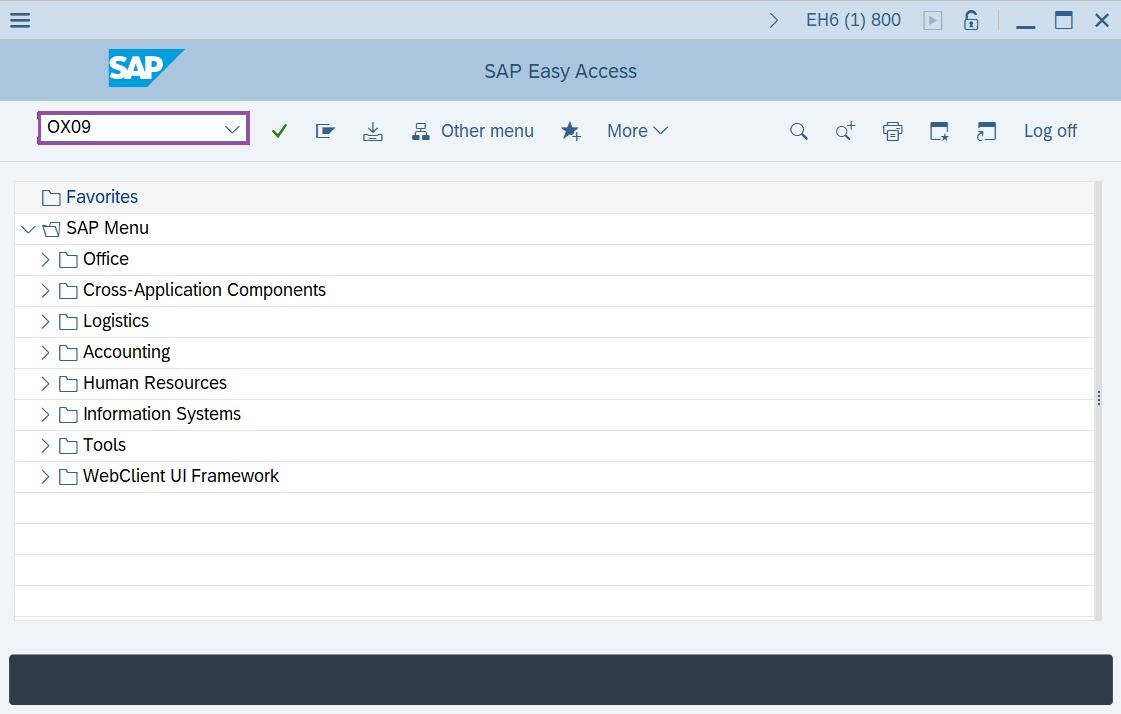
Step-1: - Enter the transaction code OX09 in SAP command field and press Enter to continue.
Step-2: - A pop up window "Determine Work Area: Entry" screen appears. Enter the plant code for storage location in SAP.
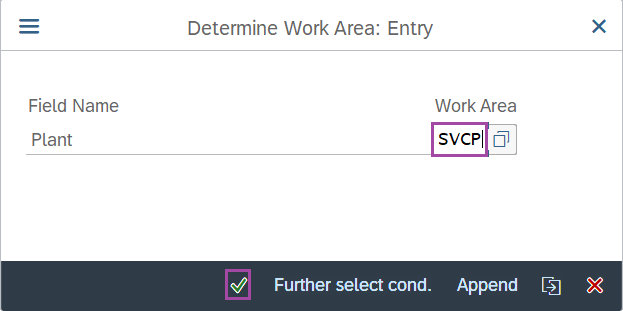
Step-3: - After entering the plant code, click on Enter to continue.
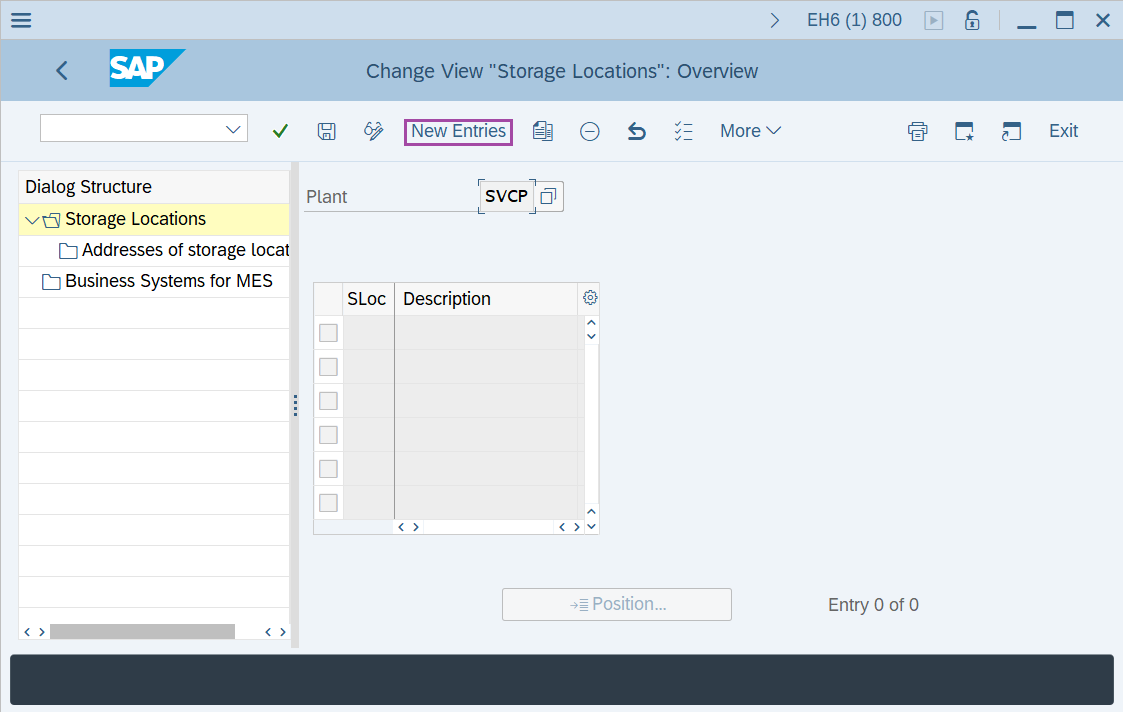
Step-4: - Change View "Storage Locations": Overview screen appears. Click on the New Entries button.
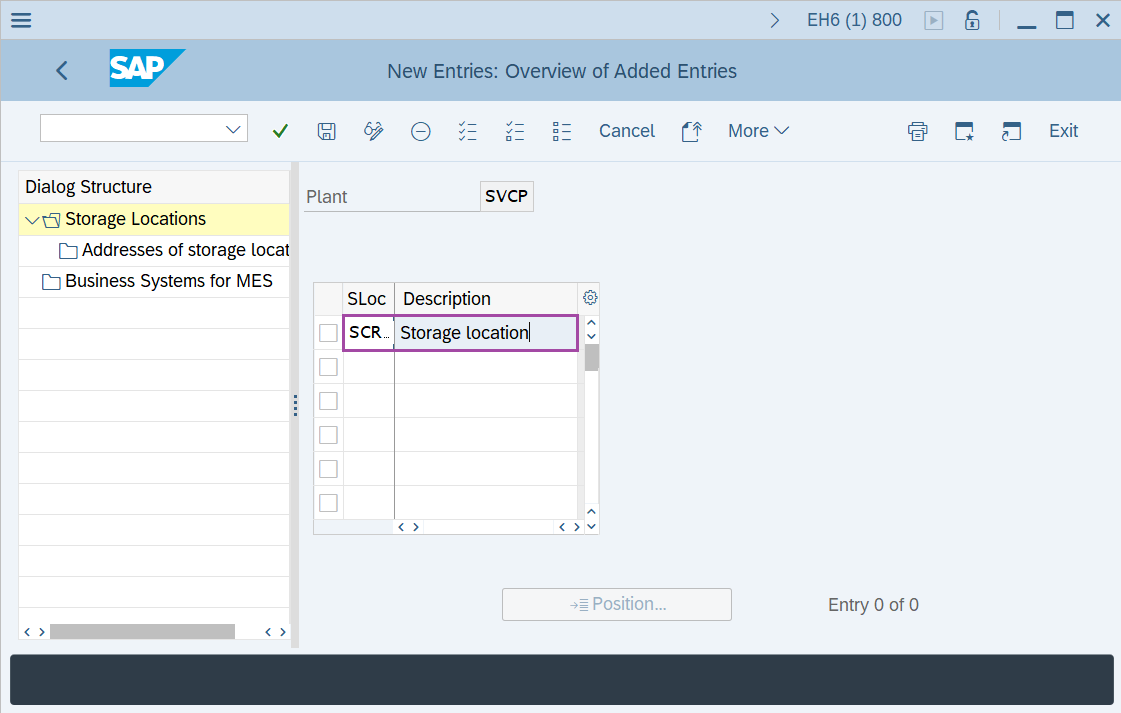
Step-5: - New Entries: Overview of Added Entries window appears, enter storage location and description in SLoc and Description fields.
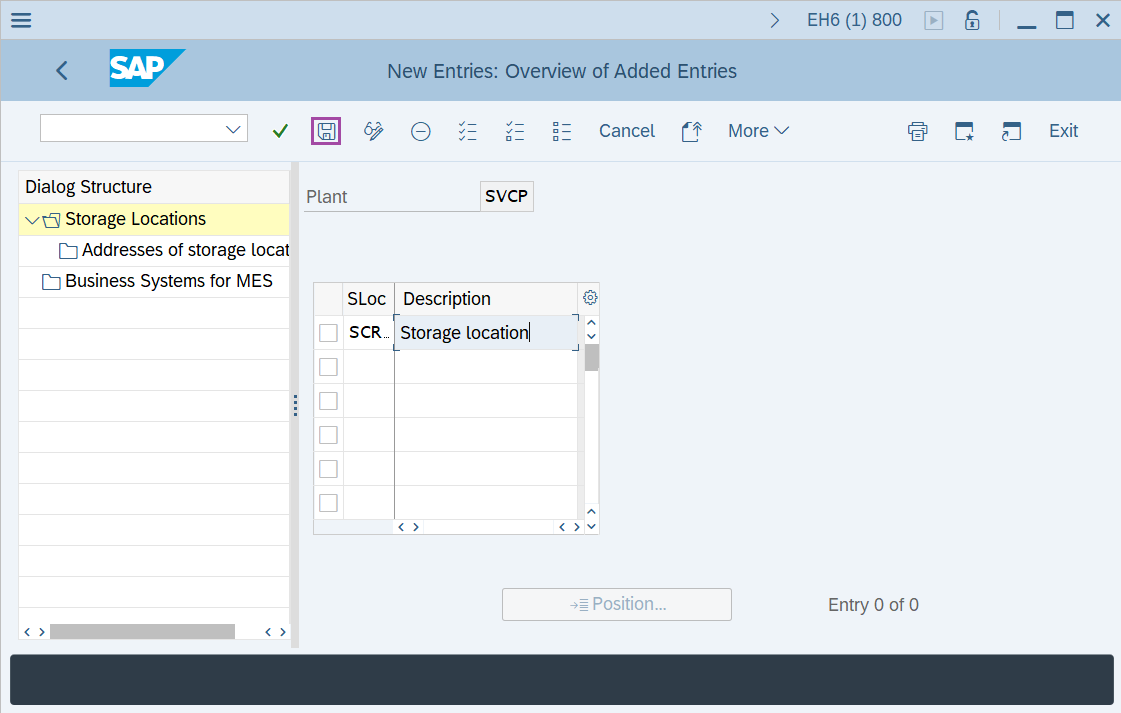
Step-6: - After entering the details, click on the Save button.
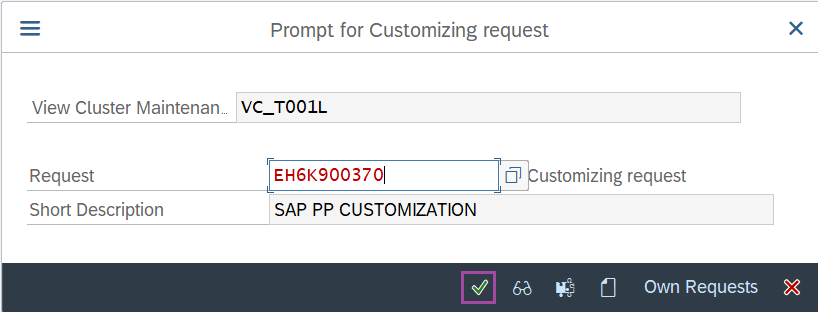
Step-7: - Select the “customizing request” and click on right mark to continue.
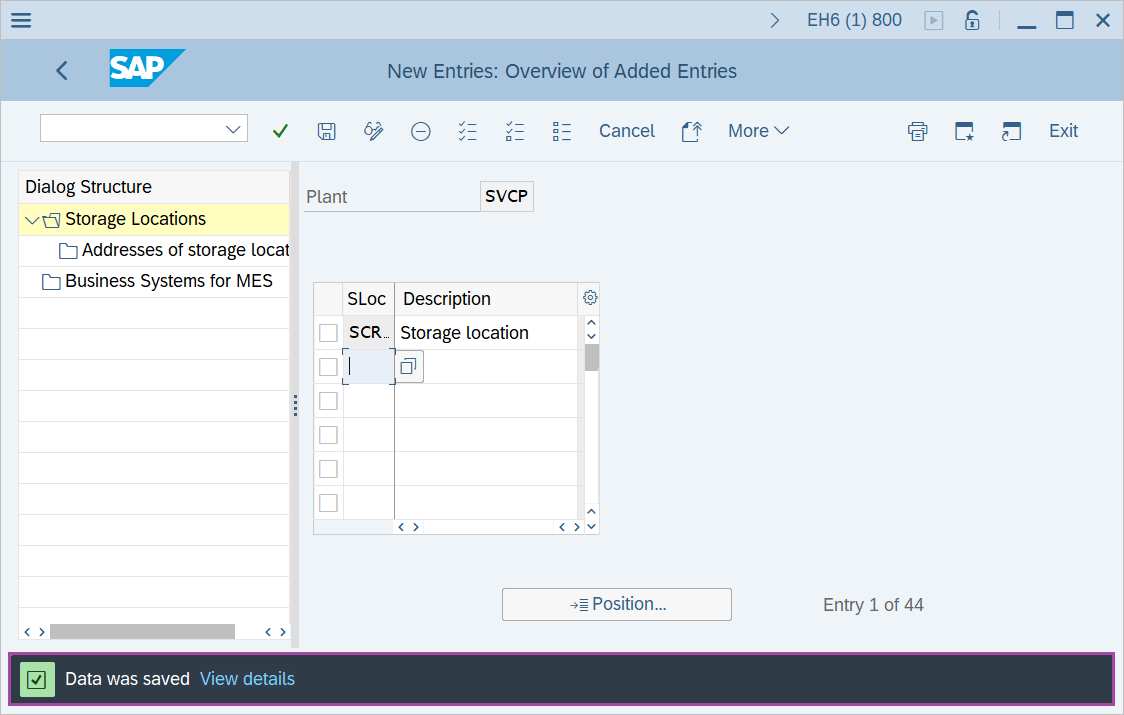
Step-8: - Status bar displays the below message once the values saved successfully.
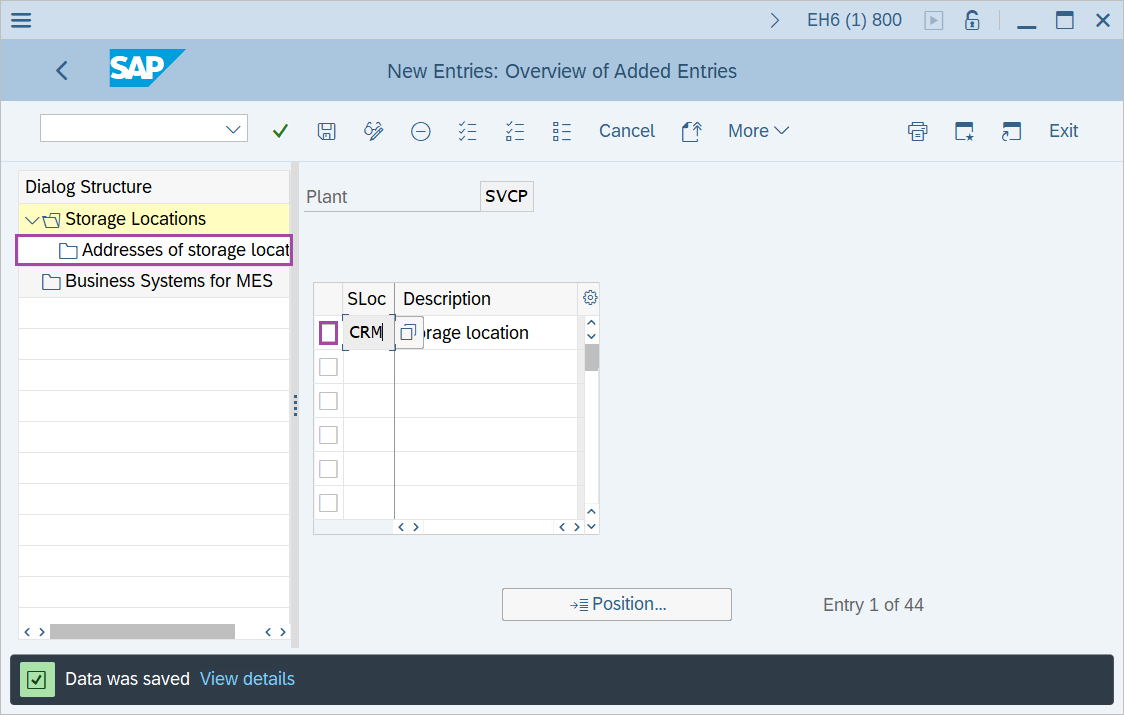
Step-9: - Select the Storage location and double click on Address of storage location folder.
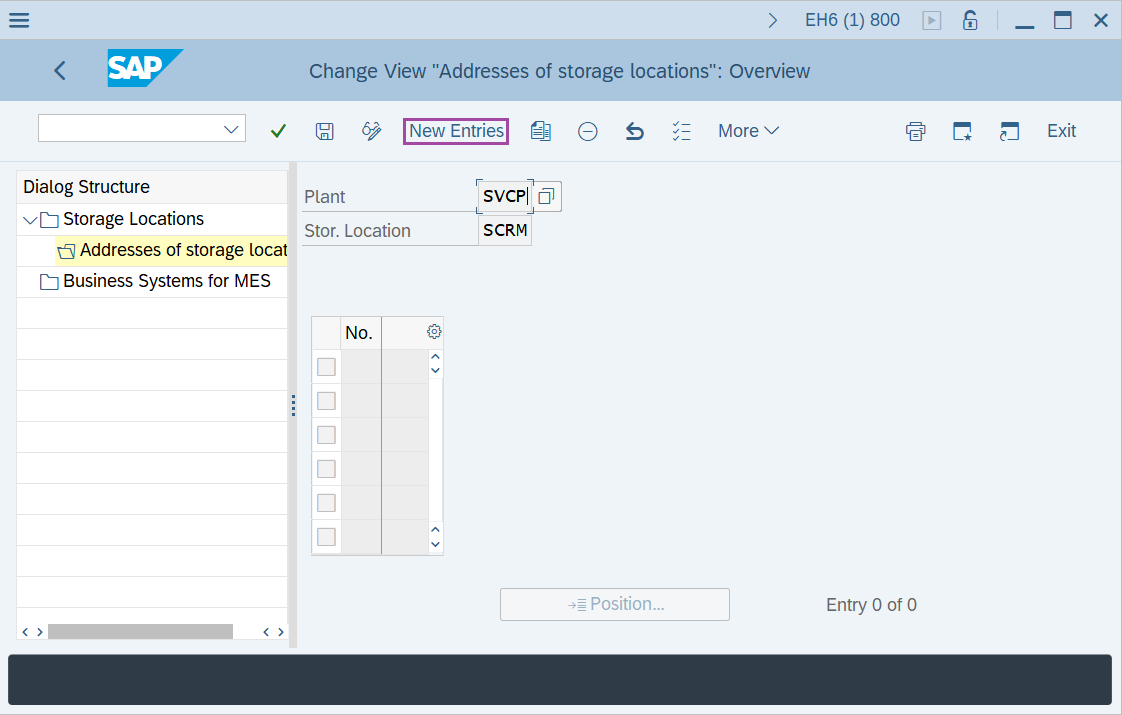
Step-10: - Change View "Addresses of storage locations": Overview screen appears. Click on New Entries button.
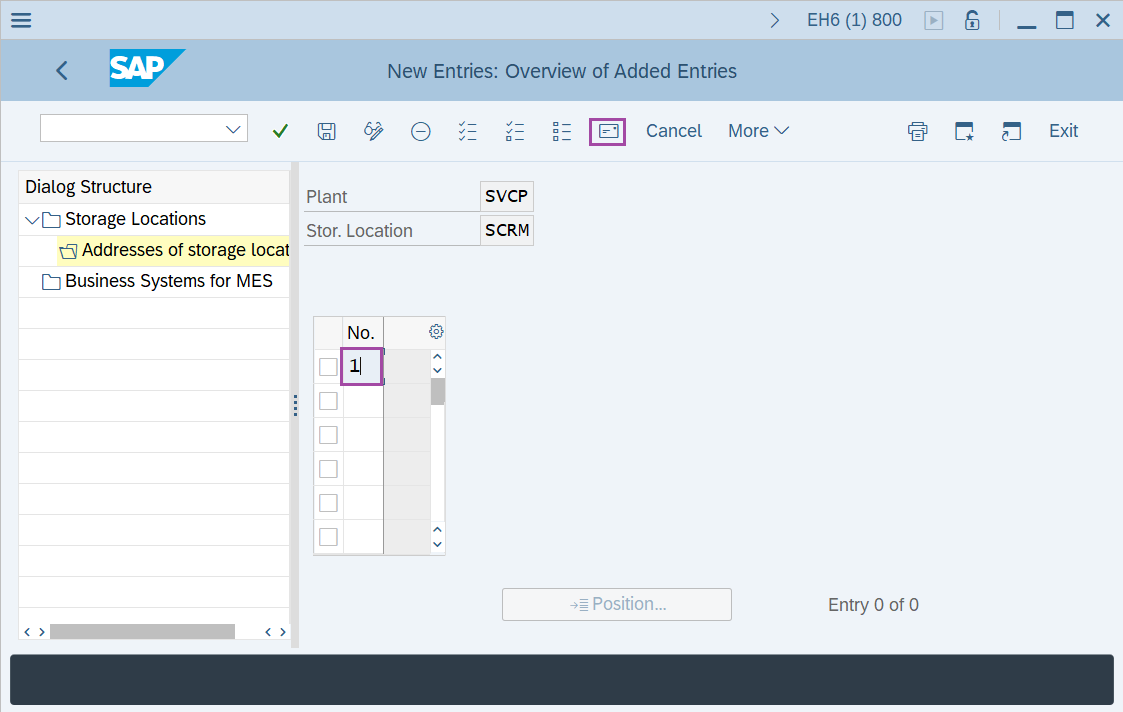
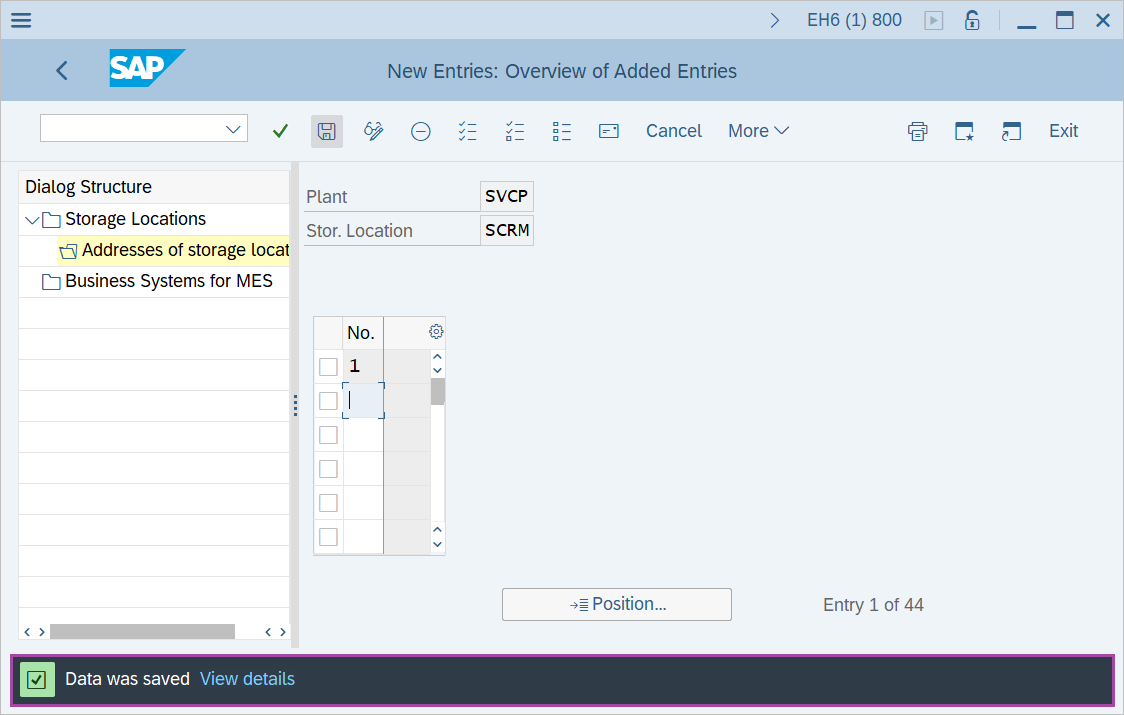
Step-11: - New Entries: Overview of Added Entries window appears, enter 1 in No field and click on Address icon.
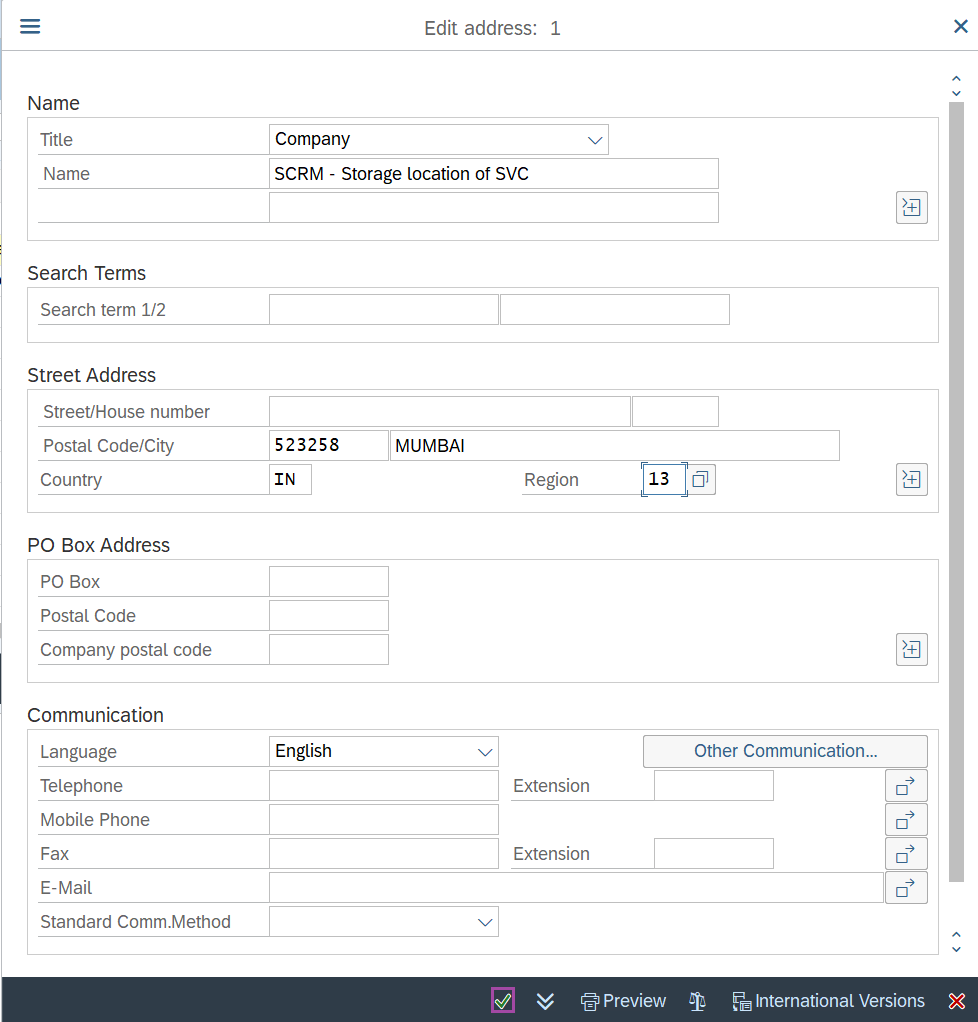
Step-12: - Enter the required details in the window appeared as Edit address and press Enter to save the details.
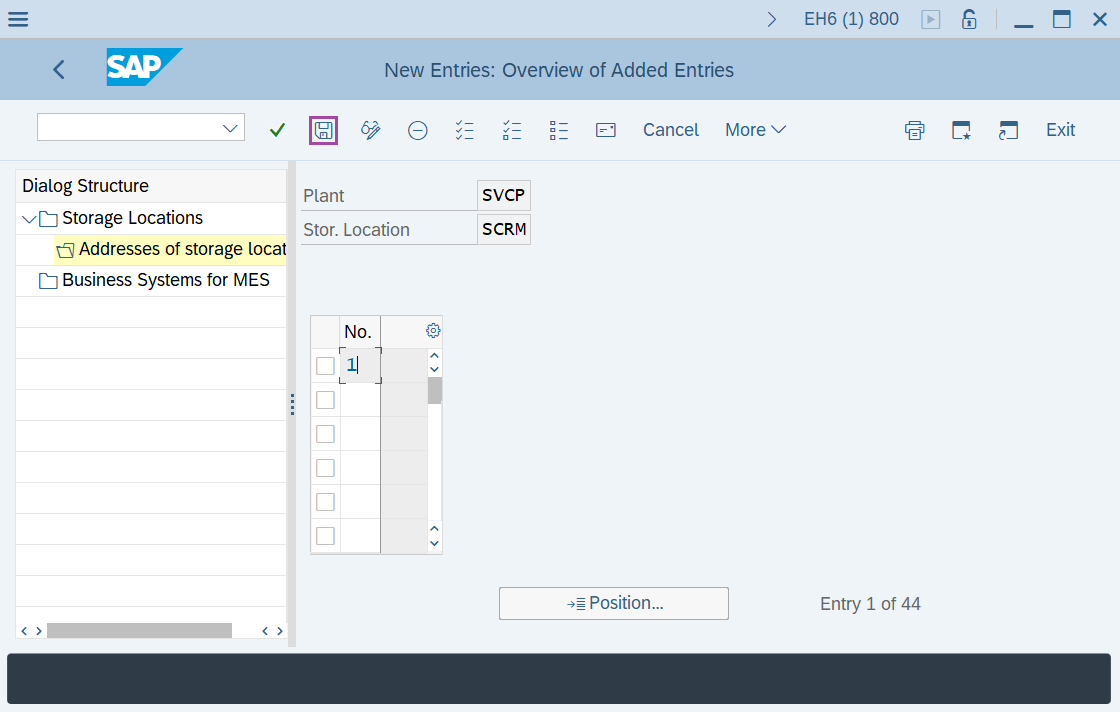
Step-13: - Status bar displays the below message once the default values saved successfully.
Technical details –
- Transaction code: OX09
- Menu path: SPRO → IMG Reference → Enterprise Structure → Definition → Material Management → Maintain storage location.