
SAP PP Create Material Master
Material Master is the central record for a material — a “master data” object that contains all relevant information about a material: what it is, how it’s handled, how it’s produced or procured, how it is valued, etc.
This information is organized in various pages or views like –
- Basic Data 1
- Classification
- Sales organization
- General Plant Data / Storage
- Sales text
- Purchasing
- Quality management
- Accounting
“Create Material Master” means creating a new material record in SAP, so that the material becomes available for use across modules like PP (Production Planning), MM (Materials Management), WM (Warehouse), etc.
Prerequisites -
Before you create a material master in SAP, make sure the following are defined and known:
- Material Type & Industry Sector
- Number Range / Material Numbering Setup
- Which “Views” and Organizational Levels are Needed
- Base Unit of Measure and Basic Data
Here’s a step-by-step to Create Material Master –
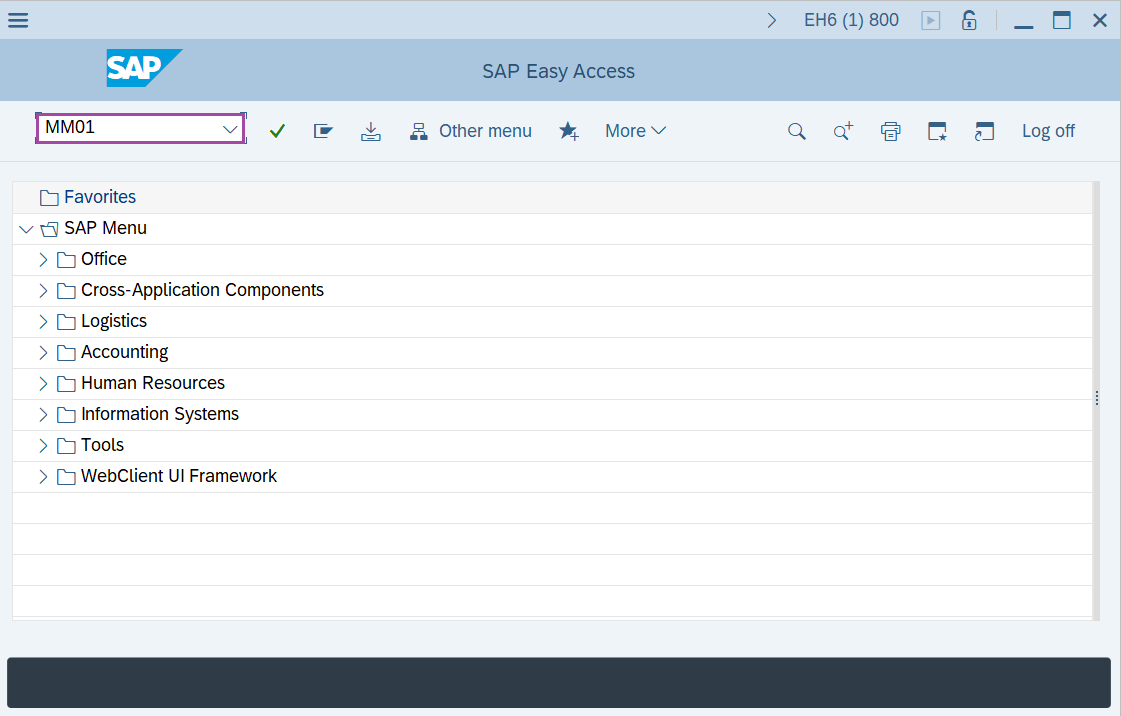
Step-1: - Enter the transaction code MM01 in SAP command field and press Enter to continue.
Step-2: - Now Create Material (Initial Screen) window appears. Enter details in the fields Material, Industry sector and Material type,
- Material – Enter the material code need to create.
- Industry type – Industry sector can be selected from list.
- Material type – select type of material.
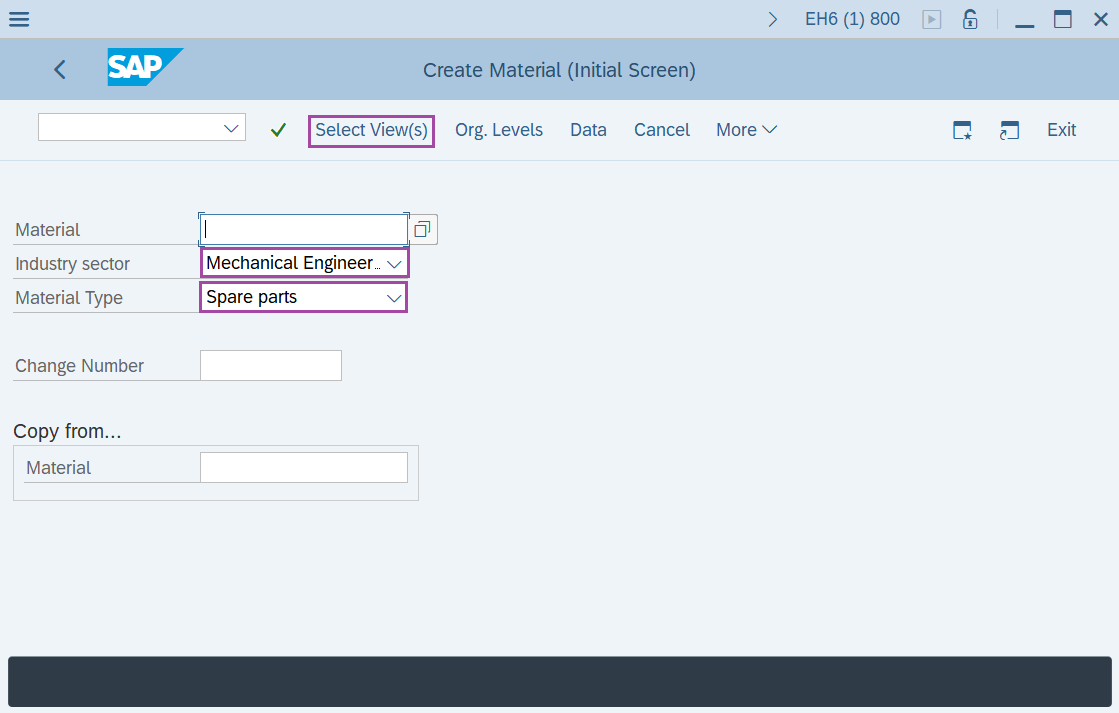
Step-3: - After entering the details in fields, click on Enter to continue.
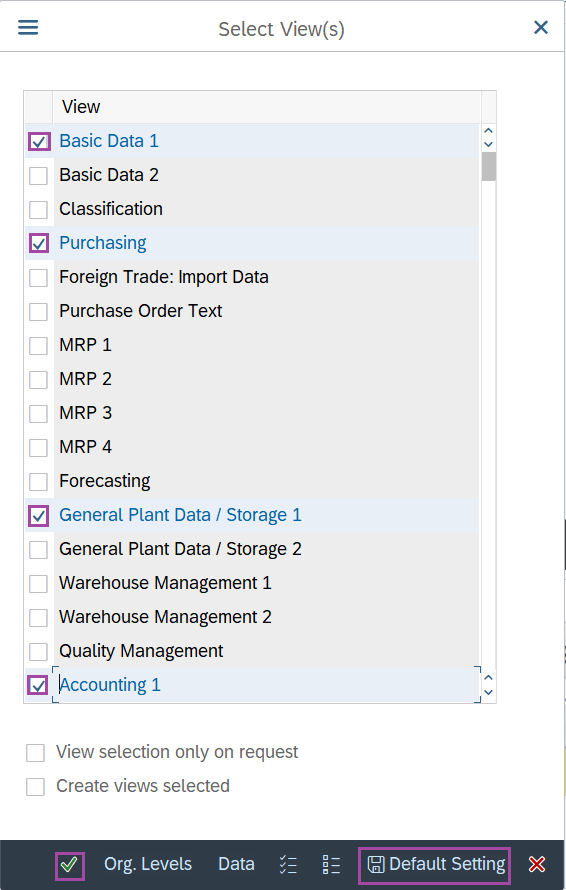
Step-4: - A pop-up window will be opened as Select View(s), select the required views and press Enter to input organisational levels.
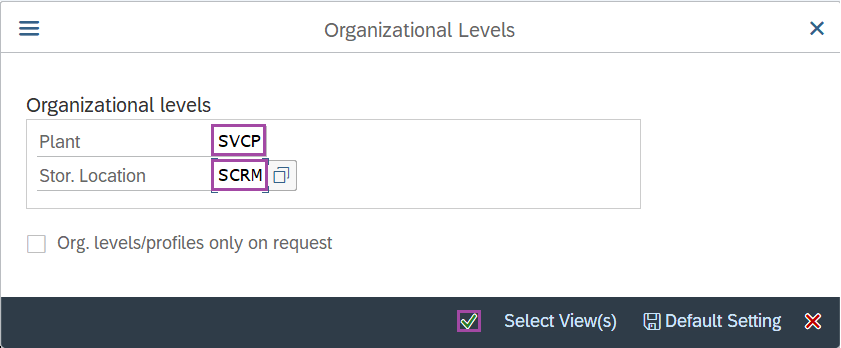
Step-5: - A pop-up window appears as Organisational Levels, enter plant name and press Enter to continue.
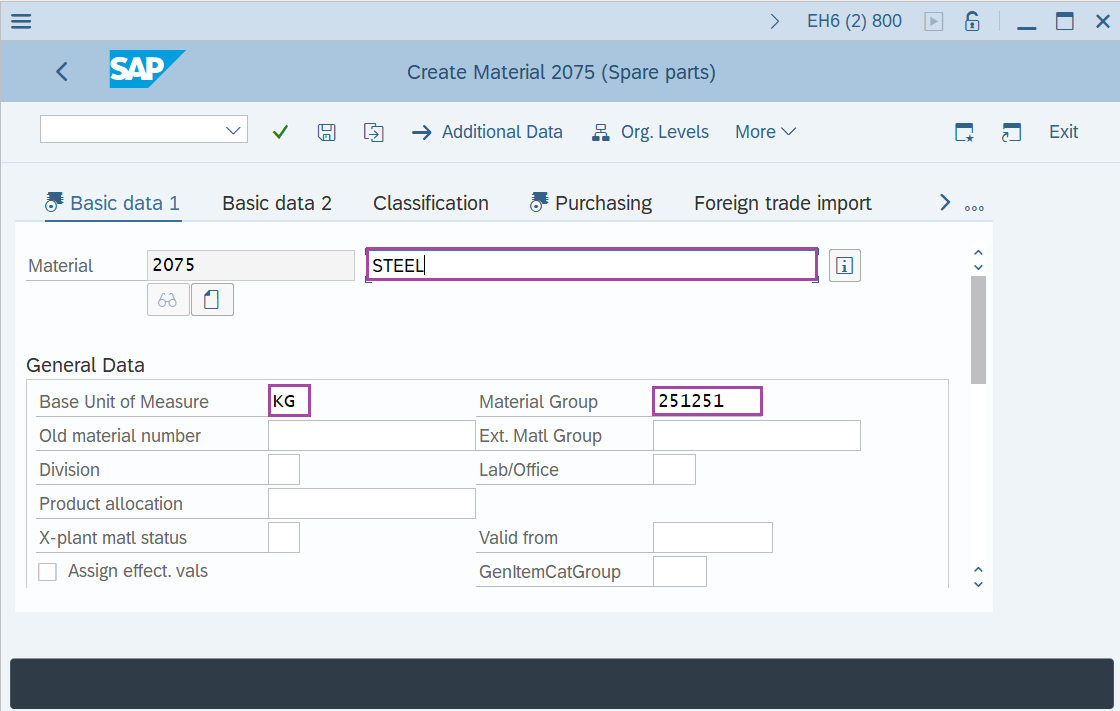
Step-6: - A new window is appeared with the views selected. Select Basic Data1 and update all required data like material group, unit of measure, item category.
- Enter material description in material field.
- Enter the unit of measure and material group in basic unit of measure and material group field.
- Enter the data if the material is returnable packing as VERP and non-returnable packing as LEIH in material data field.
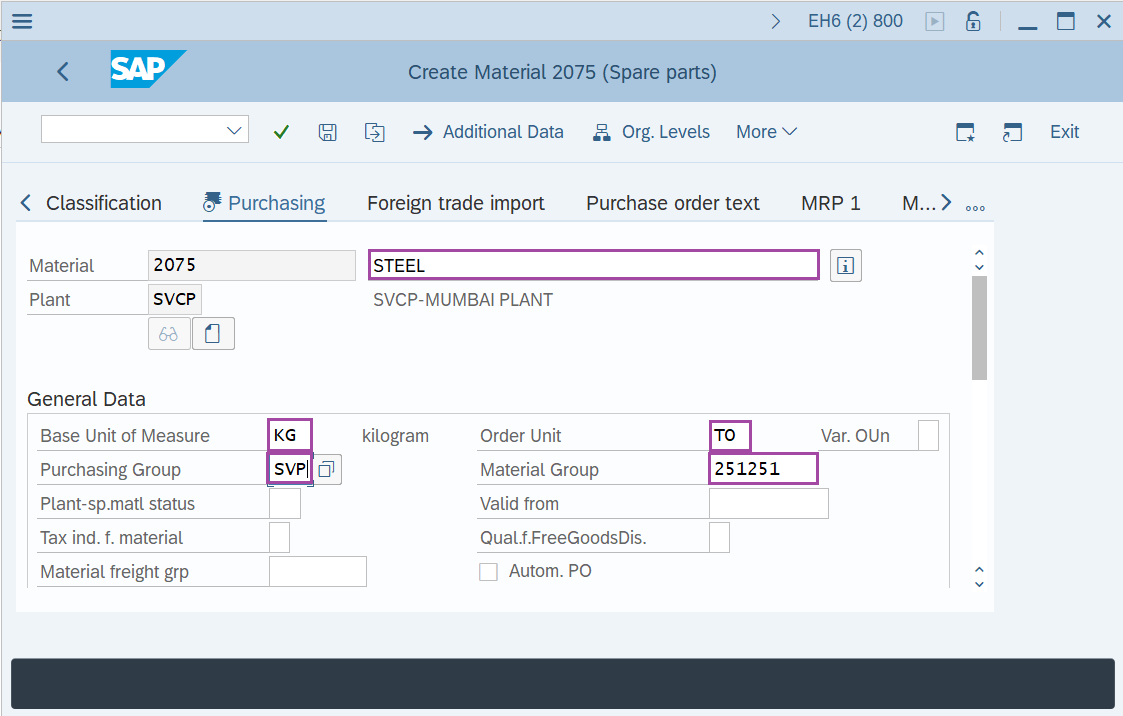
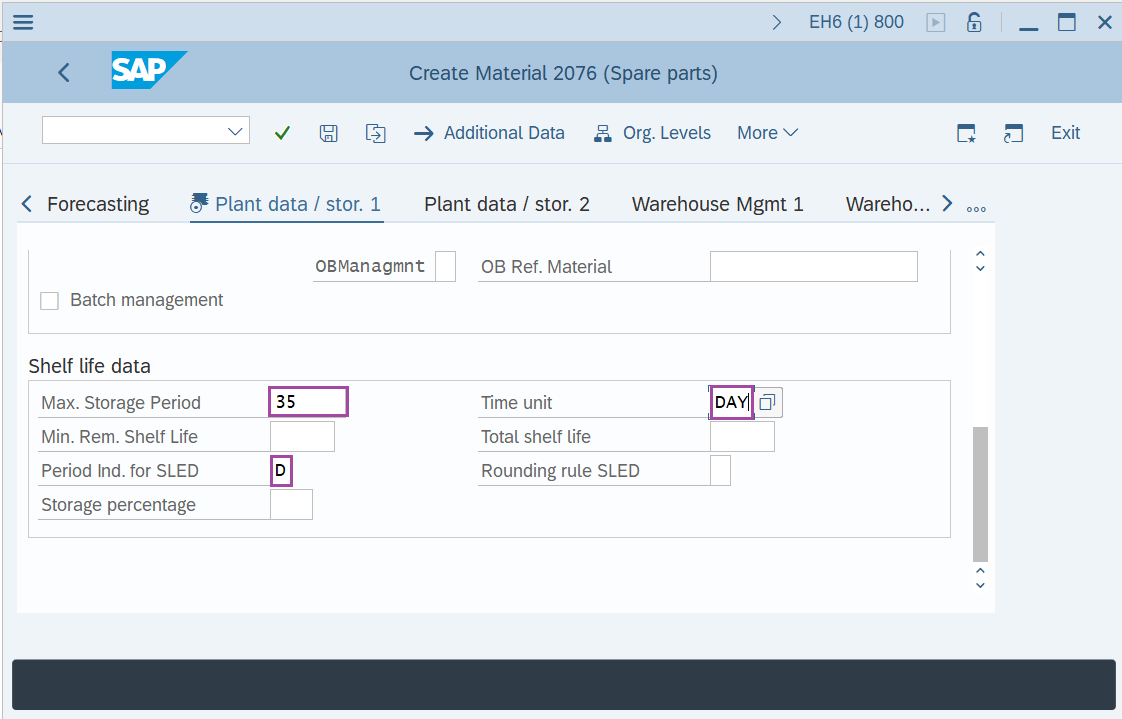
Step-7: - Enter all the required details in selected views.
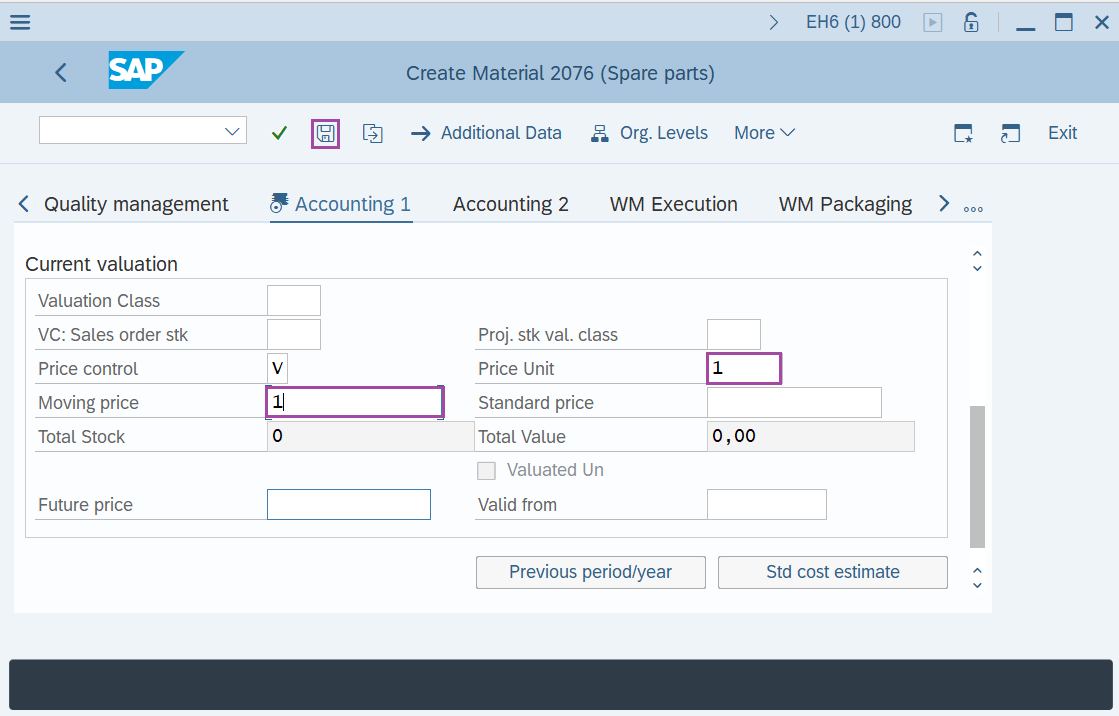
Step-8: - Once all the details are entered, click on the Save icon to save the configured data.
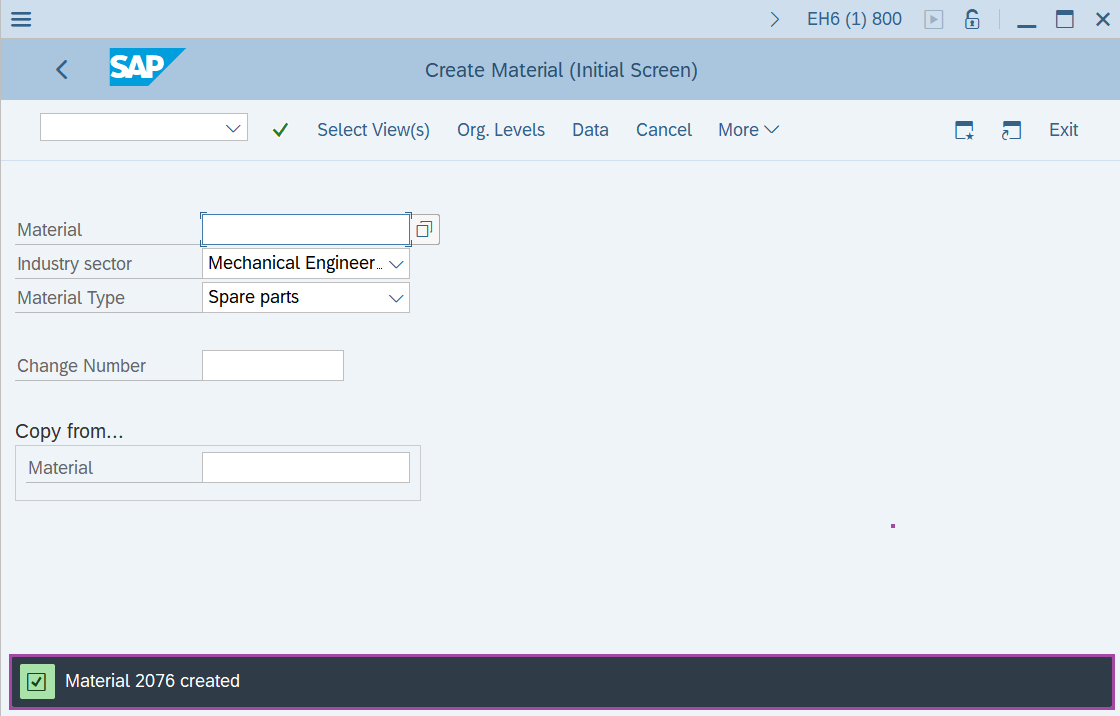
Step-9: - Status bar displays the below message once the default values saved successfully.
Technical details –
- Transaction code: MM01
- Menu path: Logistics → Material Management → Material Master → Material → Create (General).
The following are the transaction codes in creating material master –
| Code | Description |
|---|---|
| MMO1 | To create a Material master. |
| MM02 | To Change Material. |
| MM03 | To view Material master. |