
SAP PP Maintain Controlling Area
A Controlling Area is the highest organizational unit used in the controlling (CO) module of SAP. It represents a closed system for cost accounting — i.e. all cost accounting (cost centers, internal orders, cost objects) happens within a controlling area. A Controlling Area may be linked to one or more company codes.
Even though Controlling Area is part of CO / FI, it’s crucial for SAP PP because:
- Production orders in PP (when you produce something) often need cost tracking — material costs, labor, overhead — and those costs get posted to cost centers or cost objects defined in CO.
- If you have multiple company codes (e.g. different plants or subsidiaries), and want centralized cost accounting for production across them, a shared CO Area helps standardize cost accounting and simplify reporting.
Prerequisites -
- The company code(s) you plan to assign should exist (i.e. FI company code maintained).
- The company codes must share the same chart of accounts and the same fiscal year variant.
- Decide whether you need a one-to-one (CO Area per company) or cross-company cost accounting (multiple companies under one CO Area) — based on your business needs.
Here’s a step-by-step to Maintain Controlling Area –
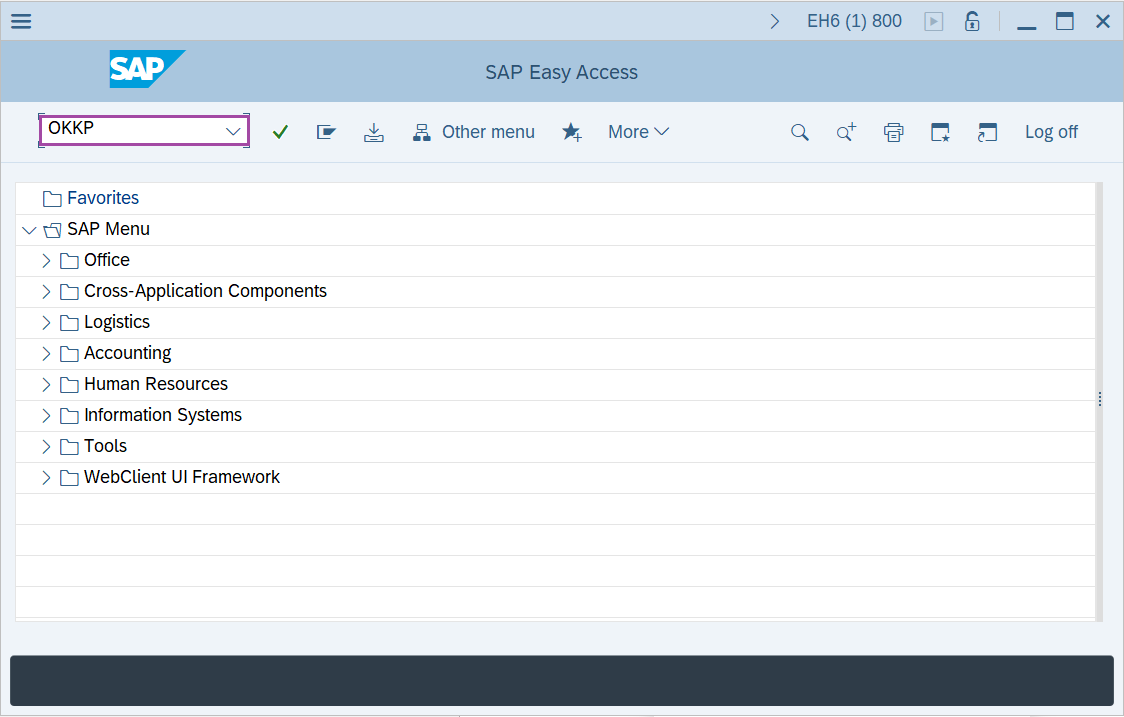
Step-1: - Enter the transaction code OKKP in SAP command field and press Enter to continue.
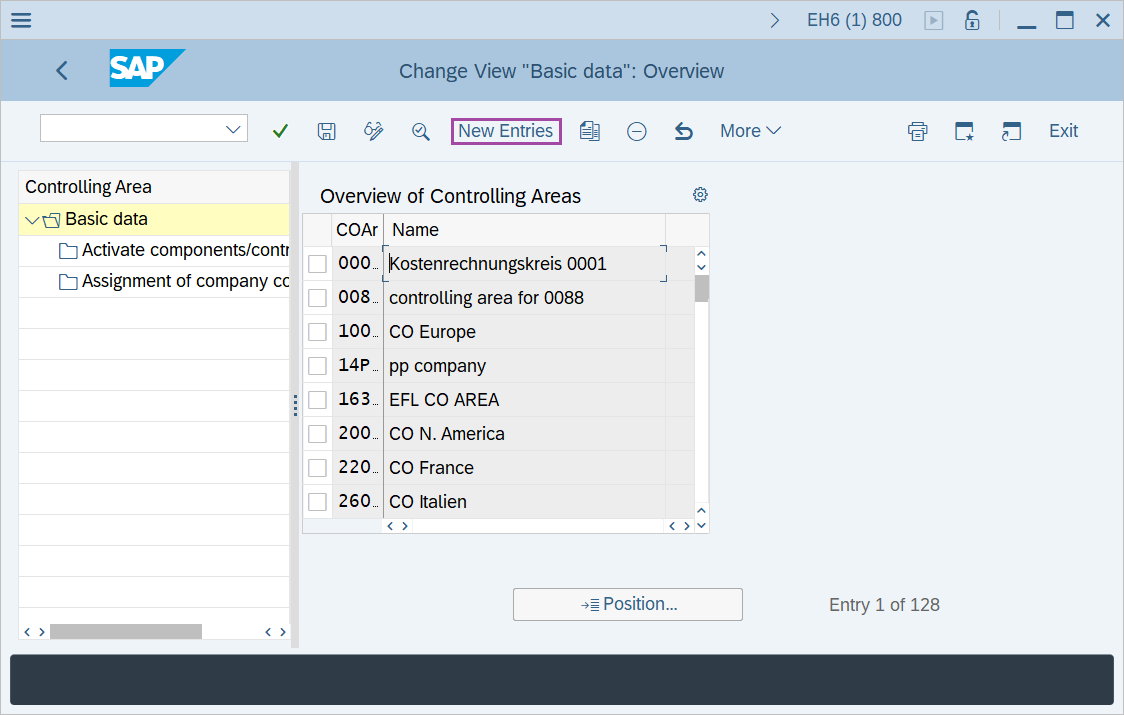
step-2: - A window appears as Change view "Basic Data": Overview. Select the New Entries.
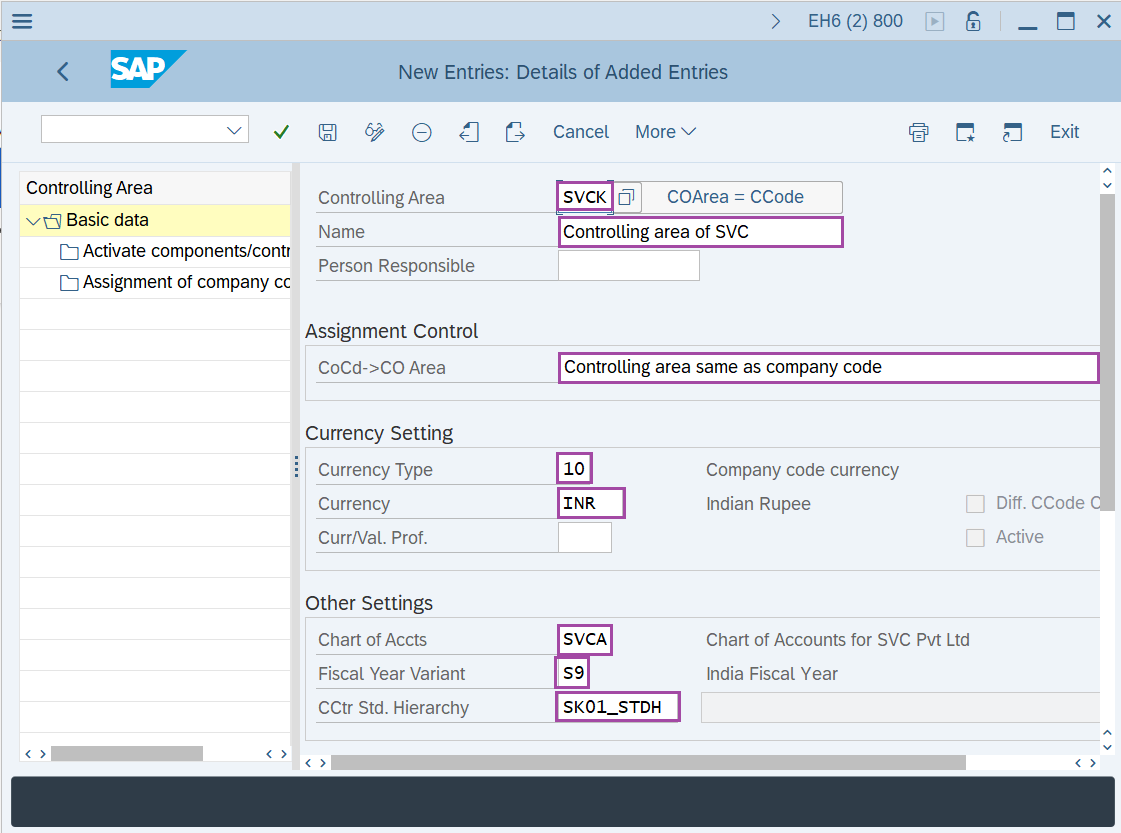
step-3: - After selecting New entries a window displayed as New Entries: Details of Added Entries, fill following the details –
- Controlling area : SSS1 ( Company code and Controlling area code can be same)
- Name : Controlling Area for SSS1
- Company code to controlling area : Select controlling area same as company code.
- Currency type : select 10 ( company code currency ).
- Enter the details of currency field, Chart of Accounts filed and Fiscal year variant.
- Cost Center standard hierarchy : SSS1_STDHI.
After entering all details press Enter to continue.
step-4: - A confirm prompt appears for creation of standard hierarchy. Select yes button to create as a standard hierarchy.
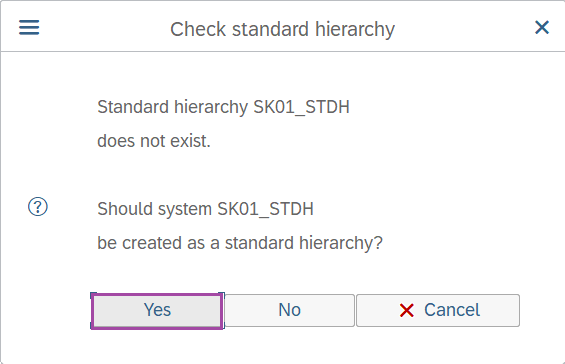
press Enter and click on Save to save the data.
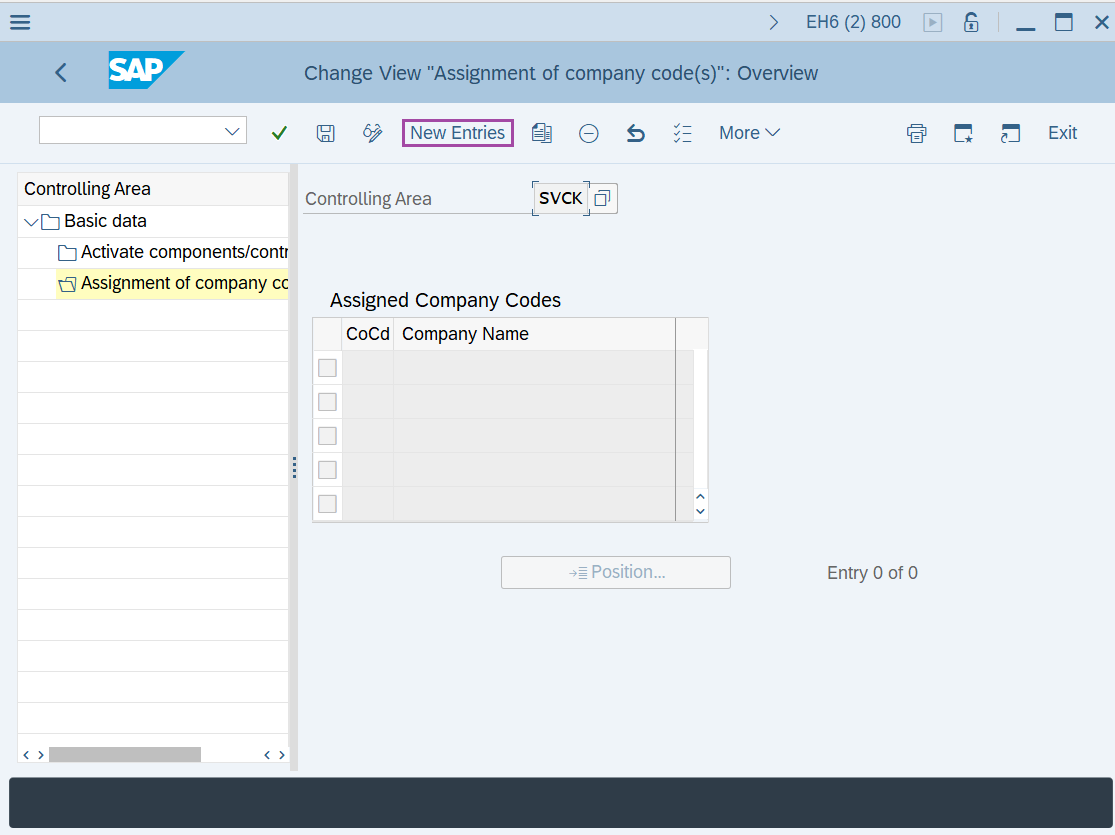
Step-5: - Double click on the Assignment of company codes folder and Select New Entries.
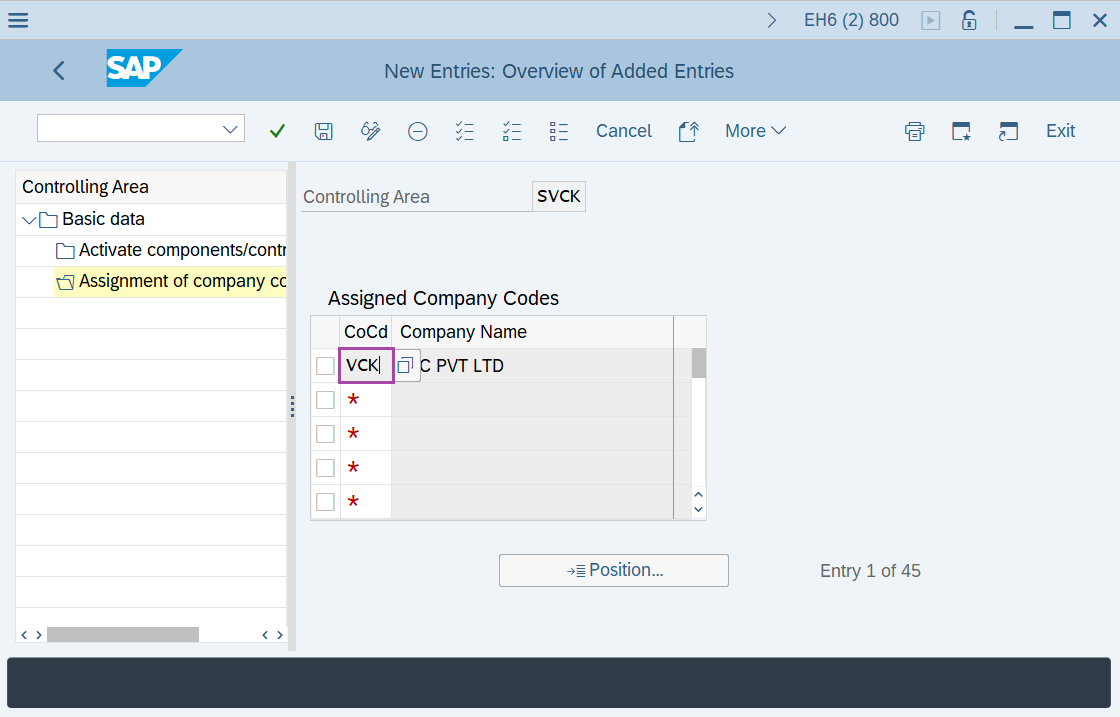
Step-6: - Enter the company code SSS1 and click on Save button.
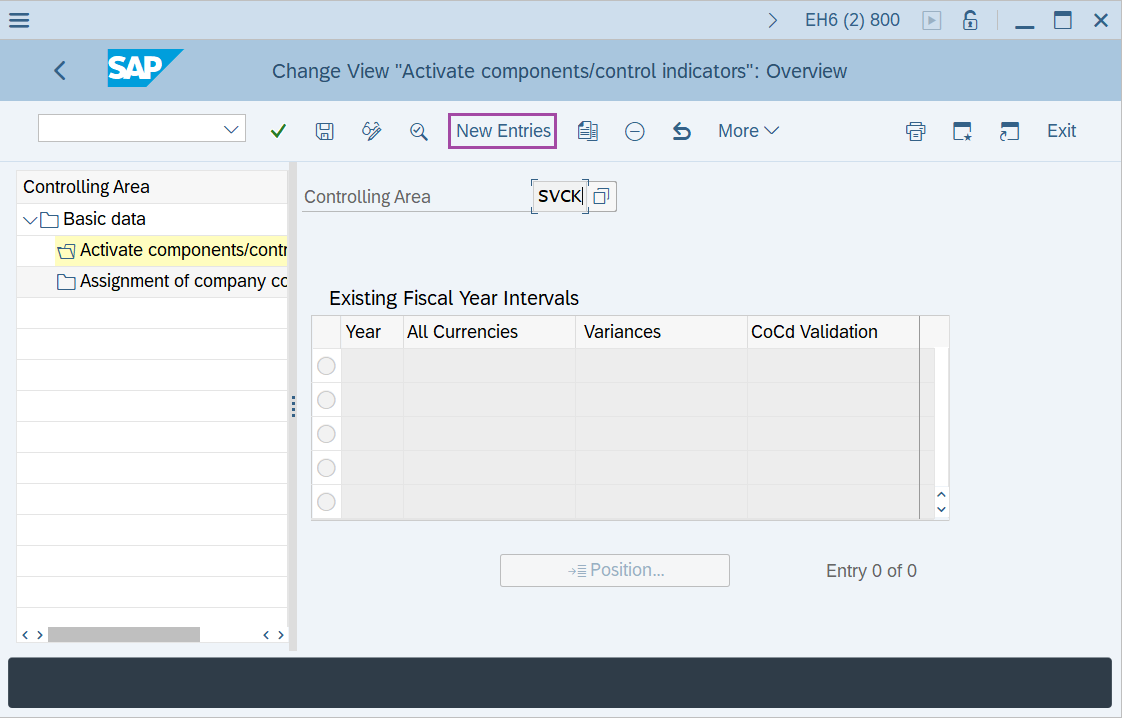
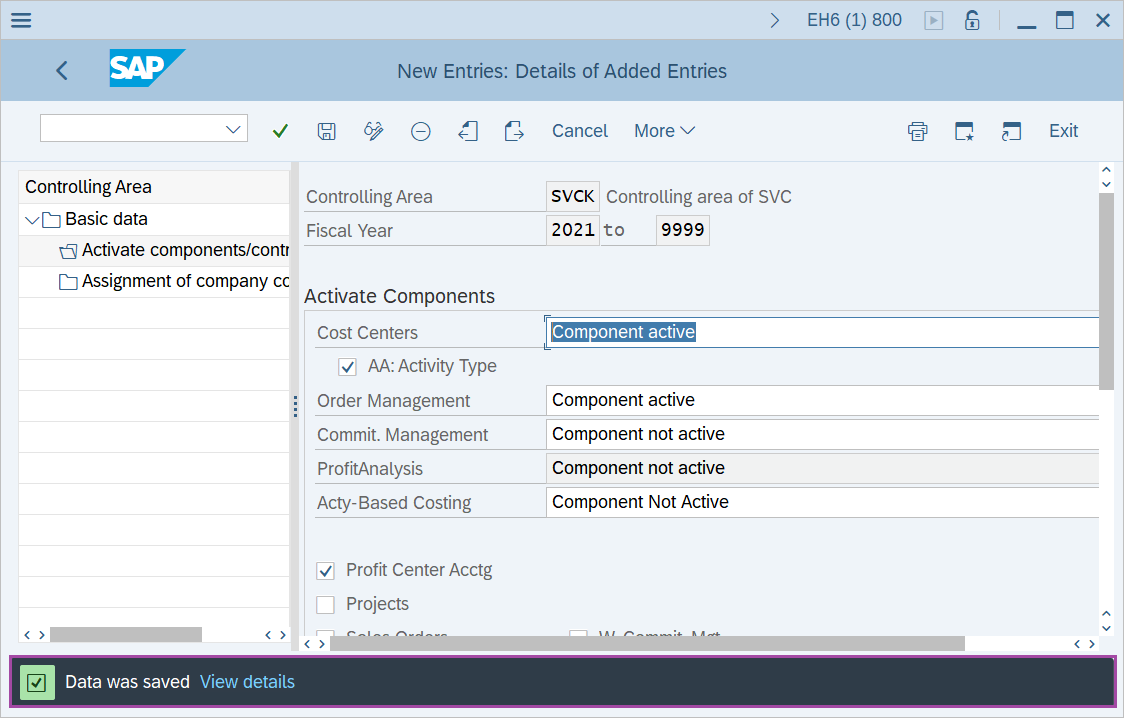
Step-7: - Double click on the Activate components / control indicators folder and Select New Entries.
step-8: - Enter the details in the fields –
- Enter the Fiscal year and Select active type check box,
- select the component active for Cost center and Order management.
- select profit center accounting check box.
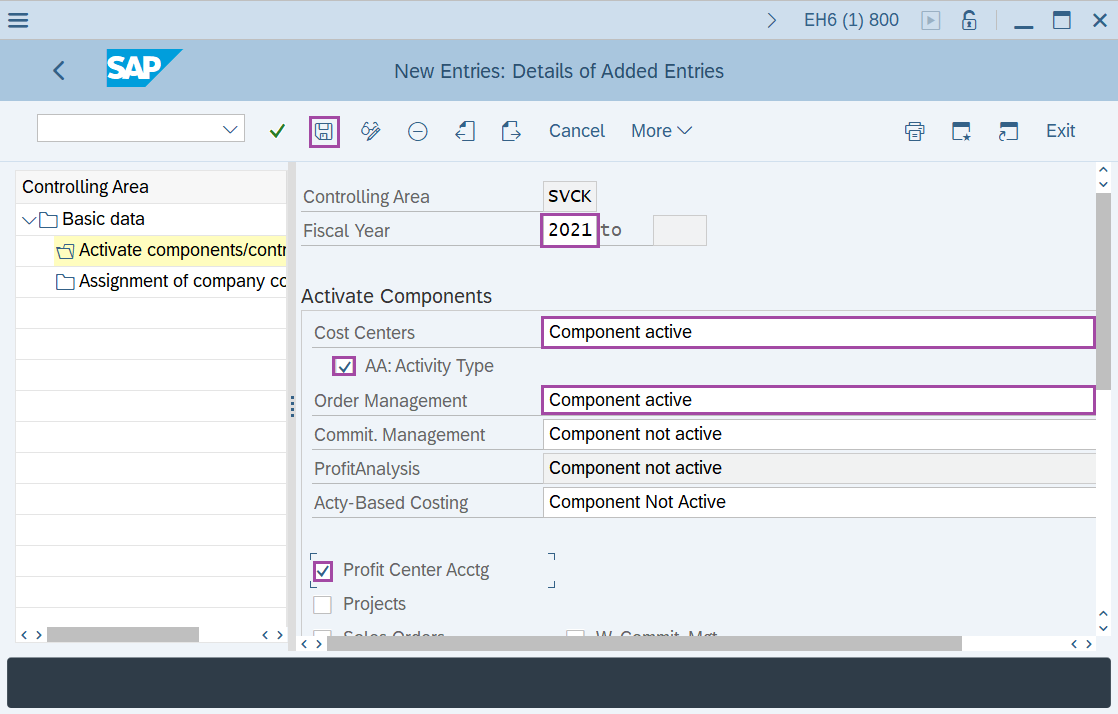
Once all data is entered click on Save button to save the data.
step-9: - Status bar displays the below message once the default values saved successfully.
Technical details –
- Transaction code: OKKP
- IMG Menu path: SPRO → IMG Reference → Controlling → General Controlling → Organization → Maintain Controlling Area → Maintain Controlling Area.